

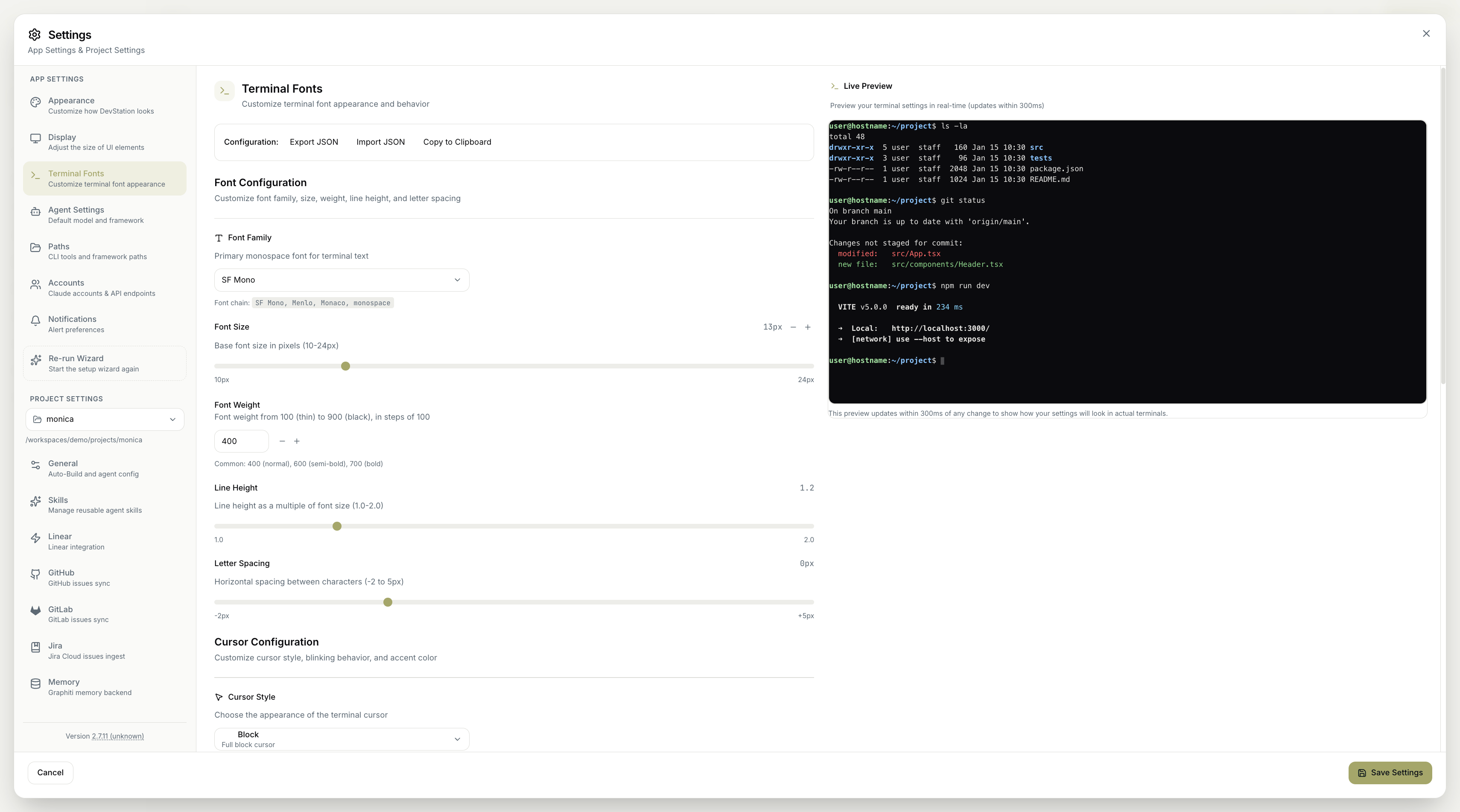
Configuration import and export
At the top, the Configuration controls let you move settings around: Export JSON to save your configuration, Import JSON to load one, or Copy to Clipboard to grab it as text.Font configuration
Customize the font family, size, weight, line height, and letter spacing of terminal text:- Font Family — the primary monospace font (with a fallback font chain).
- Font Size — the base font size in pixels (10–24px).
- Font Weight — from 100 (thin) to 900 (black) in steps of 100; common choices are 400 (normal), 600 (semi-bold), and 700 (bold).
- Line Height — as a multiple of font size (1.0–2.0).
- Letter Spacing — horizontal spacing between characters (−2 to 5px).
Cursor configuration
Customize the cursor’s style, blinking, and color:- Cursor Style — the appearance of the terminal cursor (for example, a full block cursor).
- Cursor Blink — enable or disable the blinking animation.
- Cursor Accent Color — the cursor’s color, with a Reset to return to the default.
Performance settings
Control how much terminal history is kept, which affects performance:- Quick Presets — common scrollback limits: 1K (Minimal), 10K (Standard), 50K (Extended), 100K (Maximum).
- Scrollback Limit — the maximum number of lines to keep in terminal history (1K–100K).
A larger scrollback keeps more output available to scroll back through, but uses more memory. Pick the preset that matches how much history you actually need.
Quick presets
Apply a pre-configured set of terminal font settings, or save your own:- Built-in Presets — one-click configurations modeled on familiar editors and terminals: VS Code (Consolas 14px, block cursor), IntelliJ IDEA (JetBrains Mono 13px, block cursor), macOS Terminal (SF Mono 13px, block cursor), and Ubuntu Terminal (Ubuntu Mono 13px, block cursor).
- Reset to Defaults — restore the default settings for your operating system with Reset to OS Default.
- Custom Presets — Save your current configuration as a reusable preset. Until you do, none are listed.
Live preview
A Live Preview shows your terminal settings in real time, updating within 300ms of any change so you can see exactly how your choices will look in an actual terminal before saving.Remember to click Save Settings to apply your changes. Cancel discards them.