

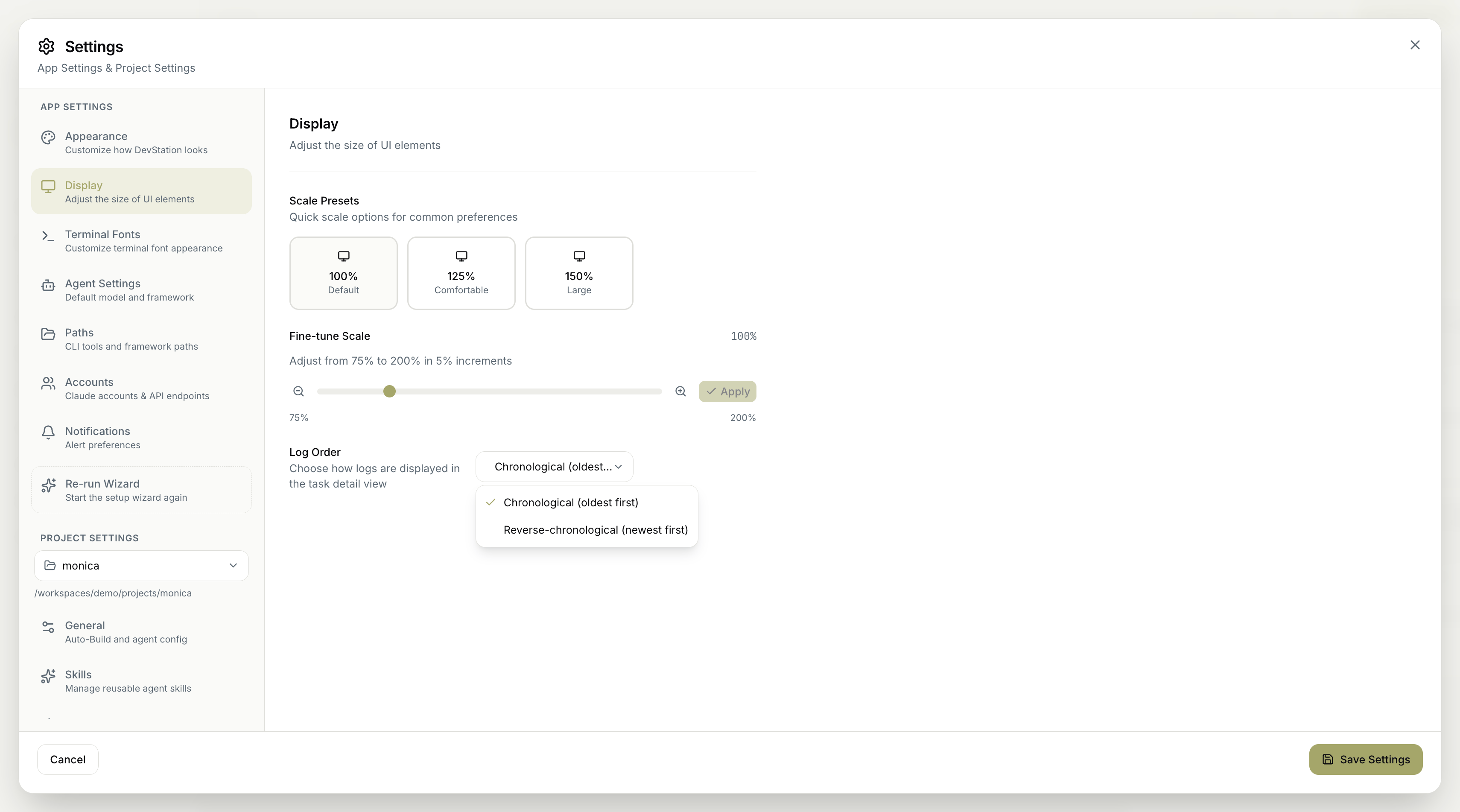
Scale presets
Quick scale options for common preferences let you resize the interface in one click:- 100% — Default — the standard size.
- 125% — Comfortable — slightly larger for easier reading.
- 150% — Large — the largest preset.
Fine-tune scale
If the presets don’t land exactly where you want, fine-tune the scale manually. Adjust from 75% to 200% in 5% increments, then click Apply to set it.Log order
Choose how logs are displayed in the task detail view:- Chronological (oldest first) — read a run from the beginning.
- Reverse-chronological (newest first) — see the latest output at the top.
Remember to click Save Settings to apply your changes. Cancel discards them.