

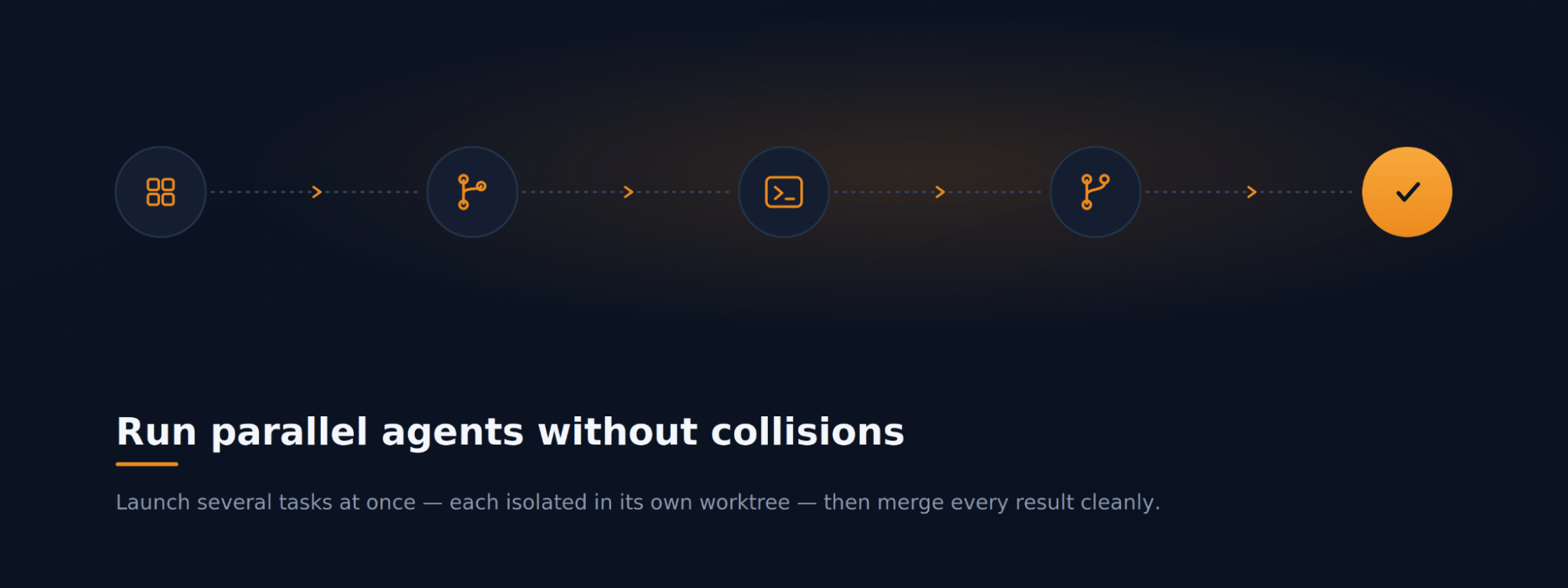
The scenario
You have a handful of independent pieces of work — a couple of dependency fixes, a small refactor, a new endpoint — and you’d rather advance all of them together than one after another. This walkthrough shows how to launch parallel work, see why the tasks stay isolated, watch and steer the agents, and land each result without merge headaches.Step 1: Queue several tasks at once
From the Dashboard, start more than one task. MyaiOne for Development runs a configurable maximum number of tasks concurrently — those occupy the In Progress slots — and any additional tasks wait in the Queue until a slot frees up. This lets you line up a batch of work and let the board feed agents automatically as capacity allows. The lifecycle columns (Planning, Queue, In Progress, AI Review, Human Review, Done) let you see at any moment how many tasks are running, how many are waiting, and how many are through.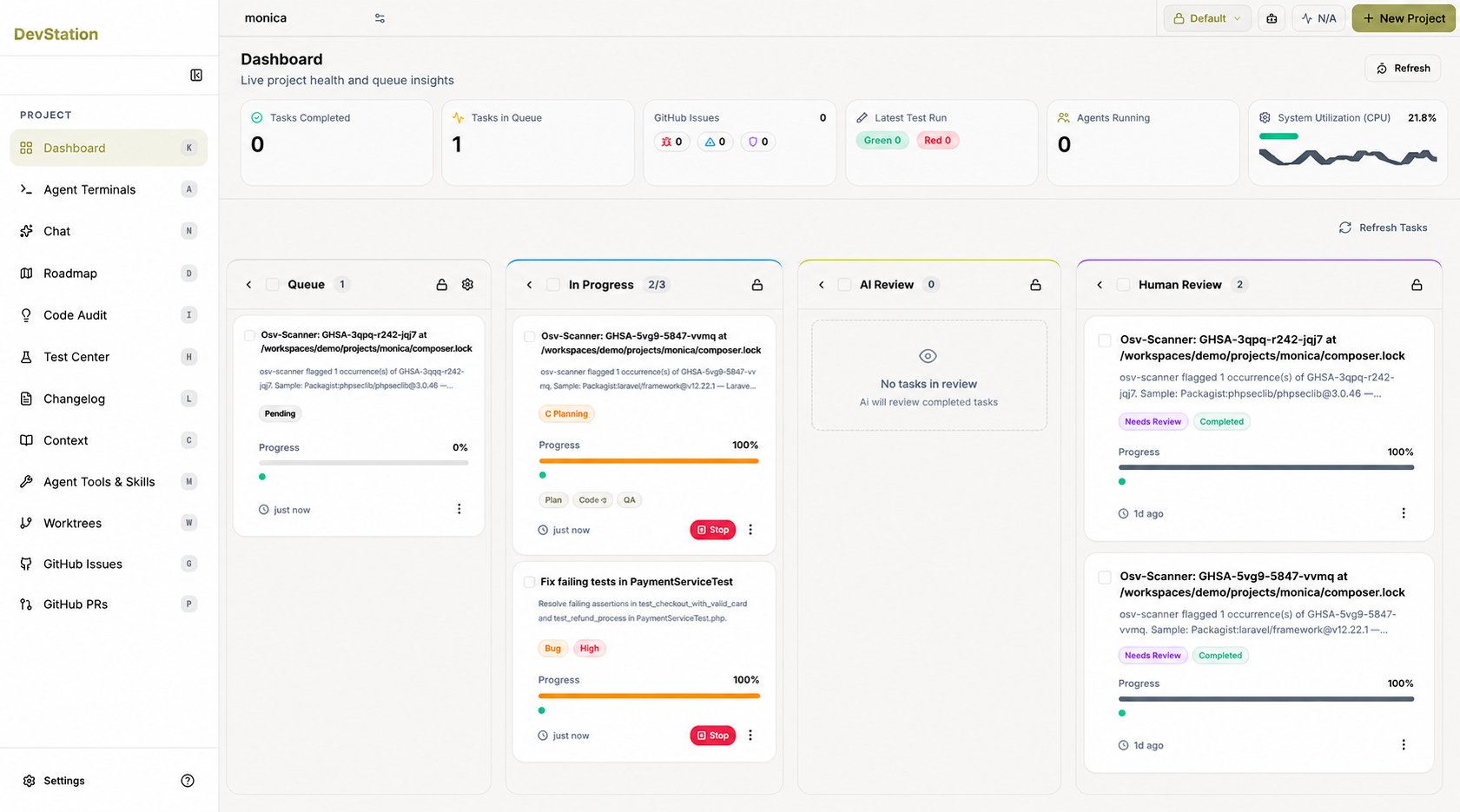
Step 2: See why they don’t collide — isolated worktrees
Open Worktrees. Every task MyaiOne for Development runs gets its own isolated workspace: a dedicated git branch and working directory, separate from main and from every other task’s workspace. This is what makes parallel work safe — two agents editing the same project at the same time never share files or step on each other’s changes, because each is operating in its own worktree. For each task worktree the page shows its branch, how many files have changed, and how many commits it is ahead of main, so you can track each stream of work independently. You can also copy a worktree’s path or remove it from here.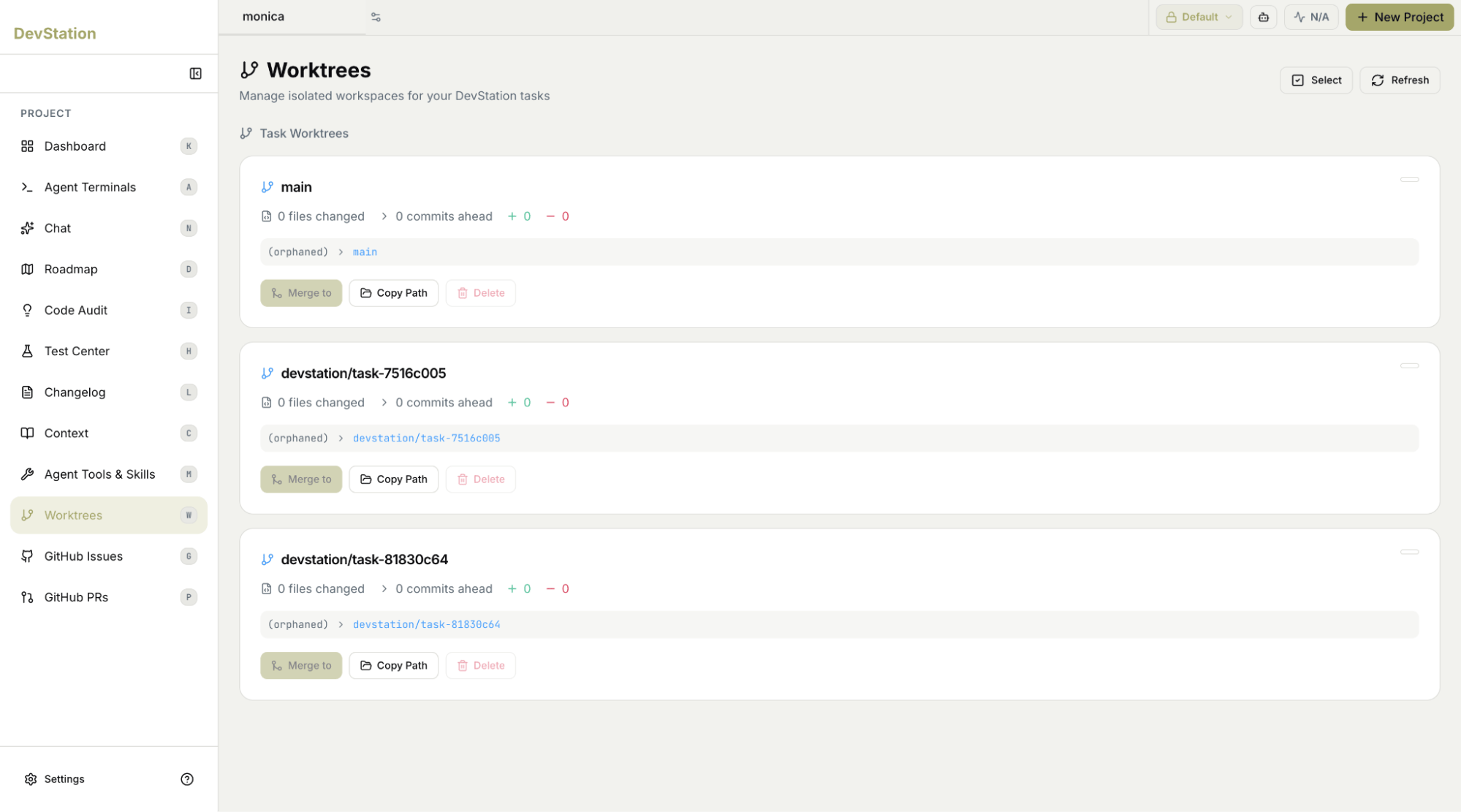
Step 3: Watch and steer the agents in Agent Terminals
Open Agent Terminals — your cockpit for the running work. You can open multiple terminals side by side, each attached to a task’s worktree, and run an agent in each (Claude, Codex, Cursor, or MyAI). Drive them individually, or use Invoke Claude All to issue an instruction across every terminal at once. From here you can also jump straight into a worktree’s code (Open in VS Code) or browse its Files, without leaving MyaiOne for Development. Because each terminal is pinned to its own worktree, what you do in one never affects another — you can have several agents working in parallel and switch between them freely.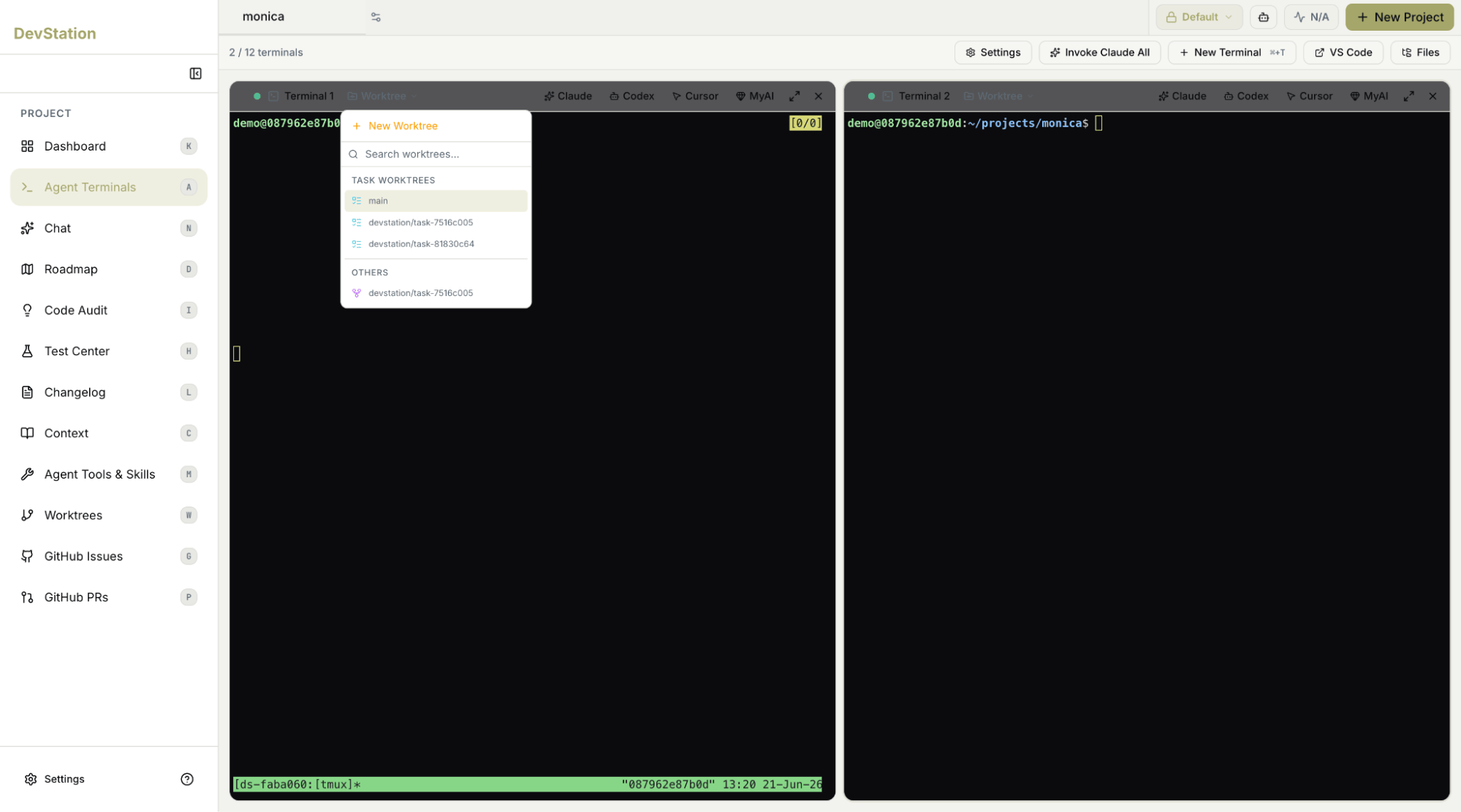
Step 4: Merge each finished task cleanly
As each task completes, land it on its own schedule. Before merging, use Check for Conflicts to confirm the task’s branch still applies cleanly against main; then Merge to bring the worktree into your main branch — or Create PR to open a pull request for review first. Because every task lived in isolation, the streams converge independently: you merge them one at a time, each conflict-checked, rather than untangling a single shared branch. When a worktree is no longer needed, copy its path or delete it to keep your workspace tidy.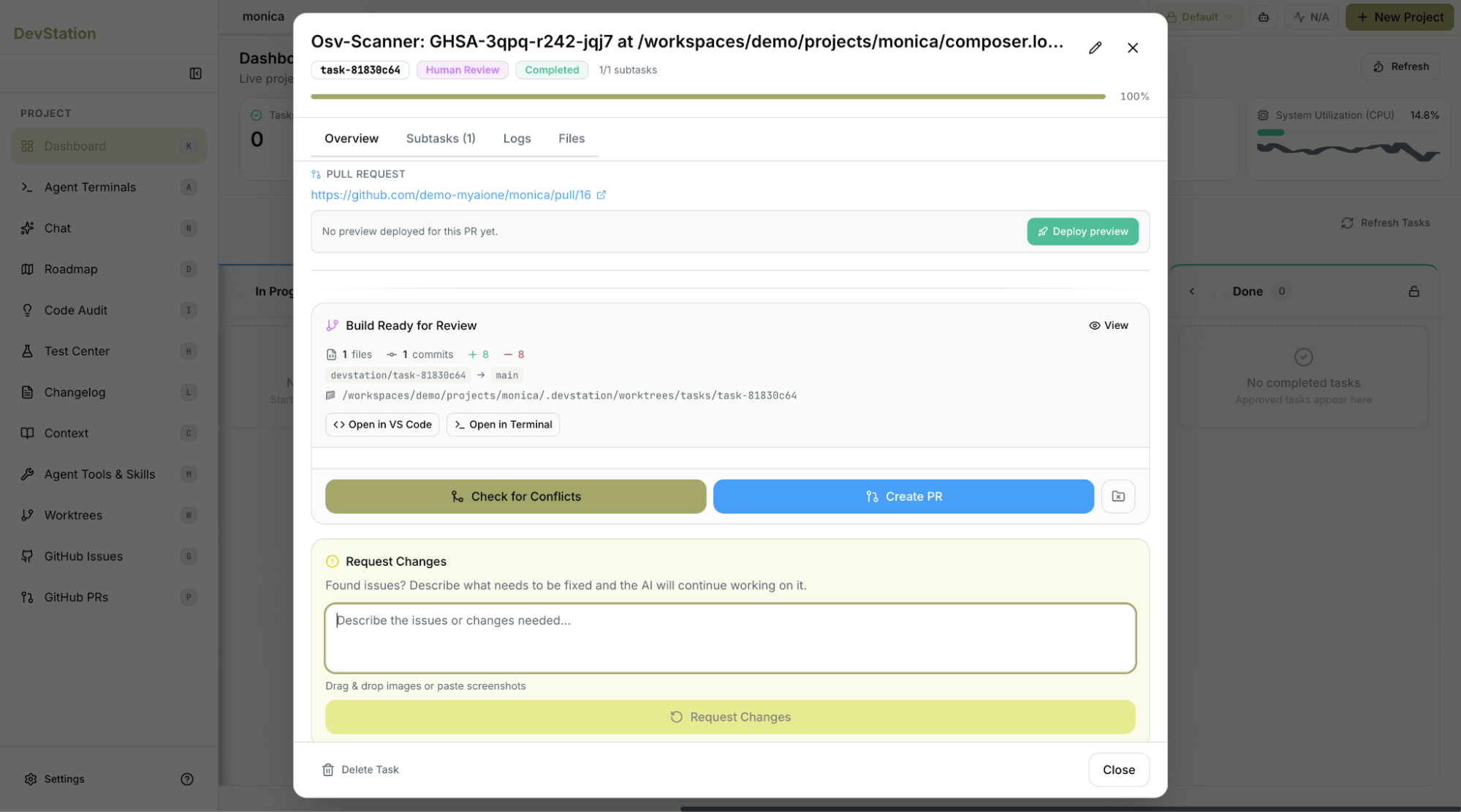
You advanced several independent tasks in parallel — isolated from one another the whole way — and merged each result cleanly, turning what would have been a serial queue into concurrent progress.