The scenario
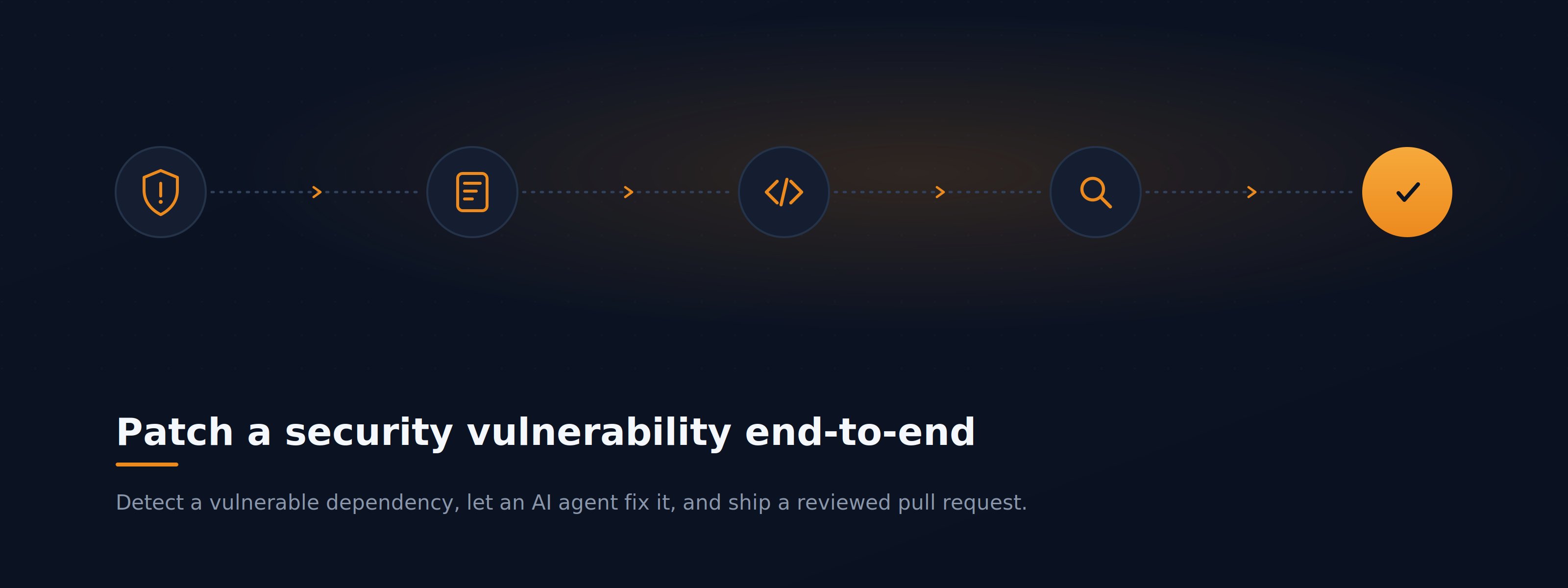
Your project’s security scan has surfaced a high-severity CVE in one of your third-party dependencies. You want it patched, reviewed, and merged — with a clear audit trail of what changed and why. This walkthrough follows that vulnerability from the moment a scanner reports it to the moment a reviewed pull request is ready to merge.Step 1: Find the vulnerability in Code Audit
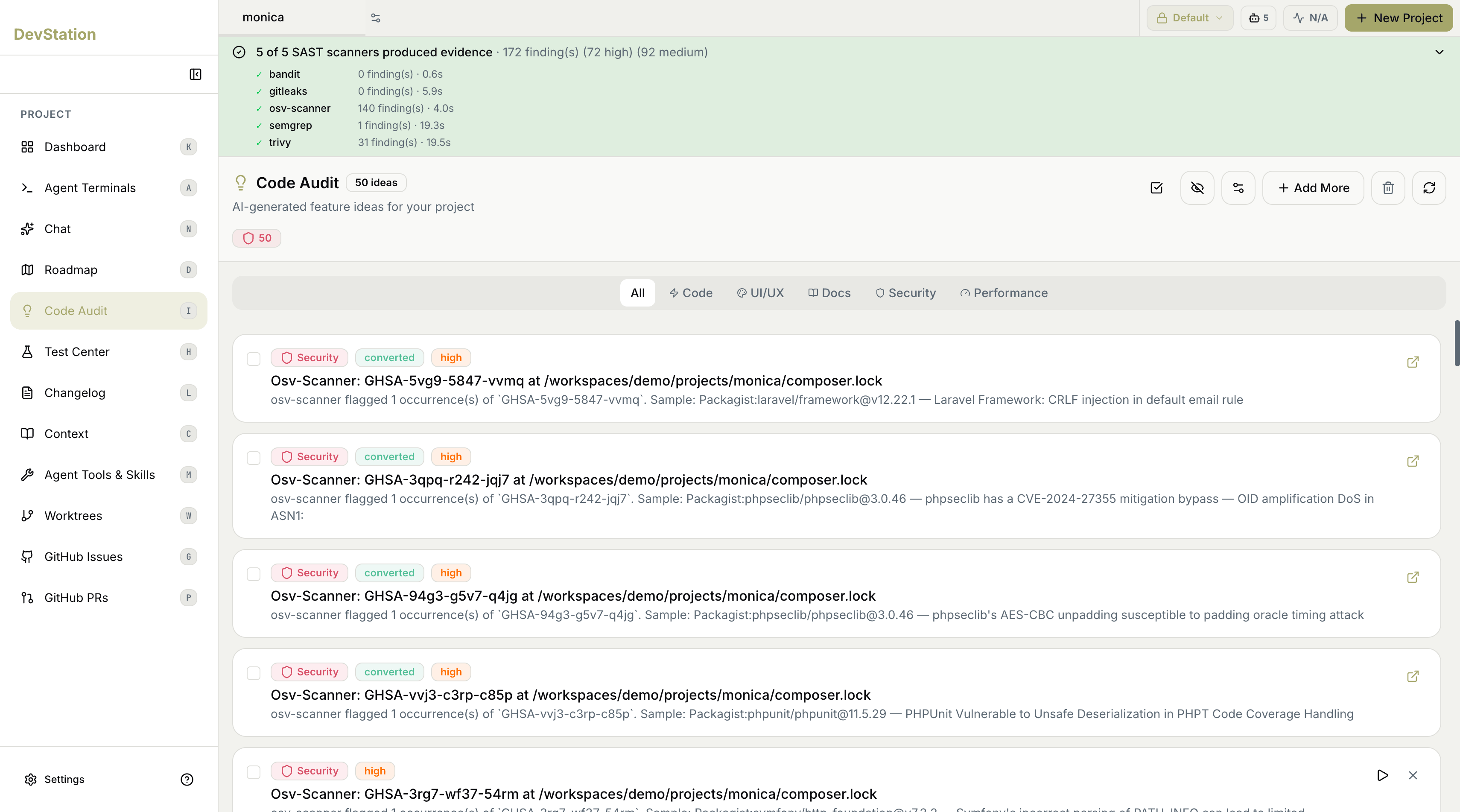
Open Code Audit from the project sidebar. MyaiOne for Development runs multiple open-source SAST and dependency scanners against your repository and consolidates their results into a single ranked list. A coverage summary at the top of the page shows which scanners ran and how many findings each produced, so you can see the evidence behind the list at a glance. Code Audit uses these popular security scanners to identify issues, each contributing what it does best:- osv-scanner — Google’s dependency (SCA) scanner. Checks your lockfiles and manifests against the OSV vulnerability database to catch known CVEs in the third-party packages you depend on. Best for finding vulnerable dependencies.
- trivy — Aqua Security’s all-in-one scanner for dependencies, container images, IaC misconfigurations, and secrets. Best for broad coverage across packages, containers, and configuration.
- semgrep — fast, multi-language static analysis of your own source code. Catches insecure patterns (injection, XSS, unsafe APIs) and supports custom rules. Best for first-party code vulnerabilities across 30+ languages.
- gitleaks — secrets scanner. Parses your git history and working tree for hardcoded credentials, API keys, and tokens. Best for catching leaked secrets before they ship.
- bandit — a lightweight, Python-native security linter. Flags common security issues in Python code. Best for deep, Python-specific checks.
Step 2: Convert the finding into a task
With the finding selected, choose Convert to turn it into a tracked task on your kanban board. MyaiOne for Development generates a task with a descriptive title and a unique ID, and the finding’s status changes to converted so you can see at a glance which audit results are already being acted on. The new task appears in the Planning column on your Dashboard.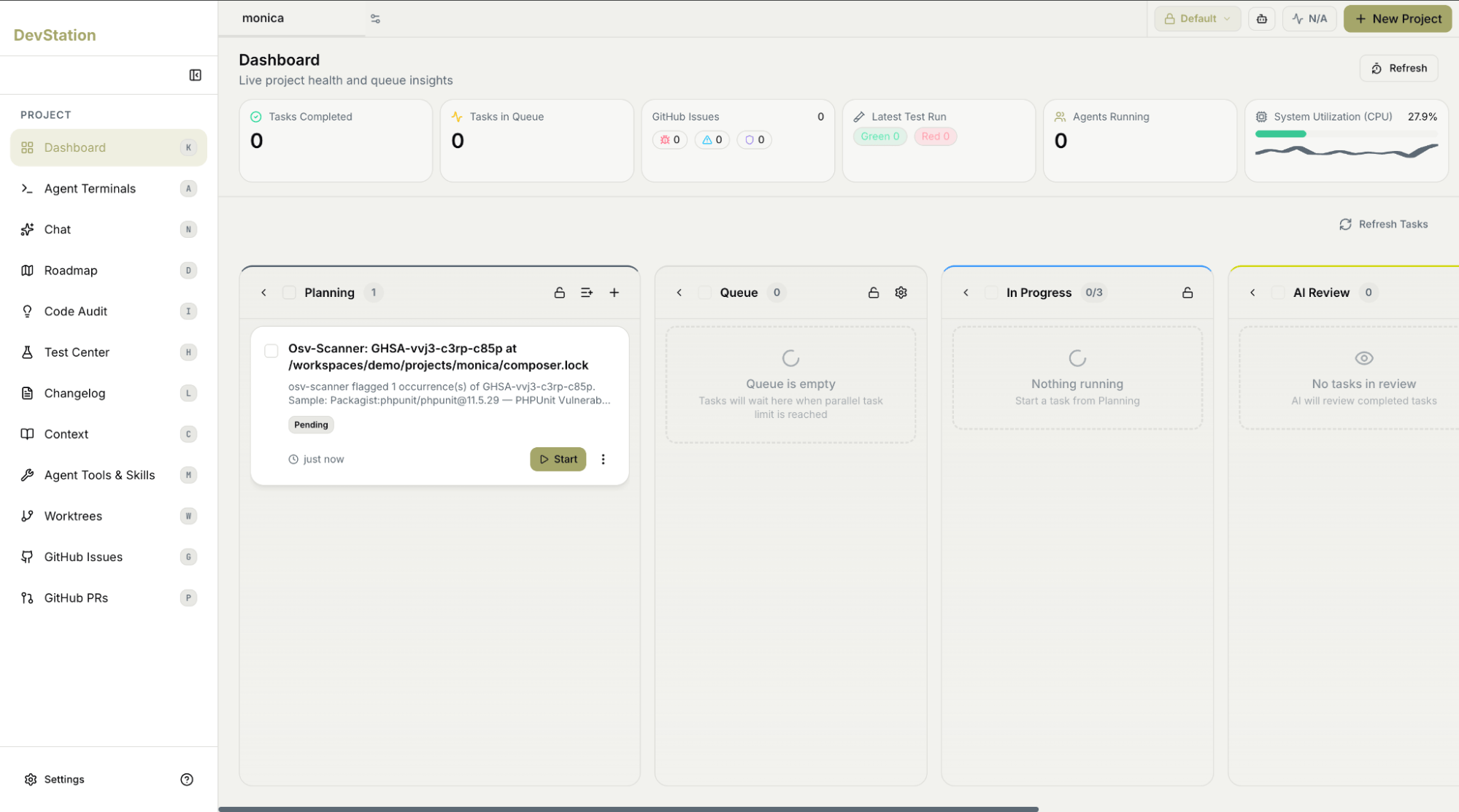
Step 3: Open the task and start the agent
On the Dashboard, click the task card to open its detail view. The task modal has four tabs — Overview, Subtasks, Logs, and Files — and opens on Overview. Here you’ll see the finding’s details and an AI-written Rationale explaining why it was surfaced as a task (for example, that it was auto-promoted from scanner evidence because its severity warranted direct action). When you’re ready, choose Start Task. MyaiOne for Development hands the work to its build agents, which plan the change and apply it inside an isolated worktree dedicated to this task — so nothing touches your main branch until you’re ready.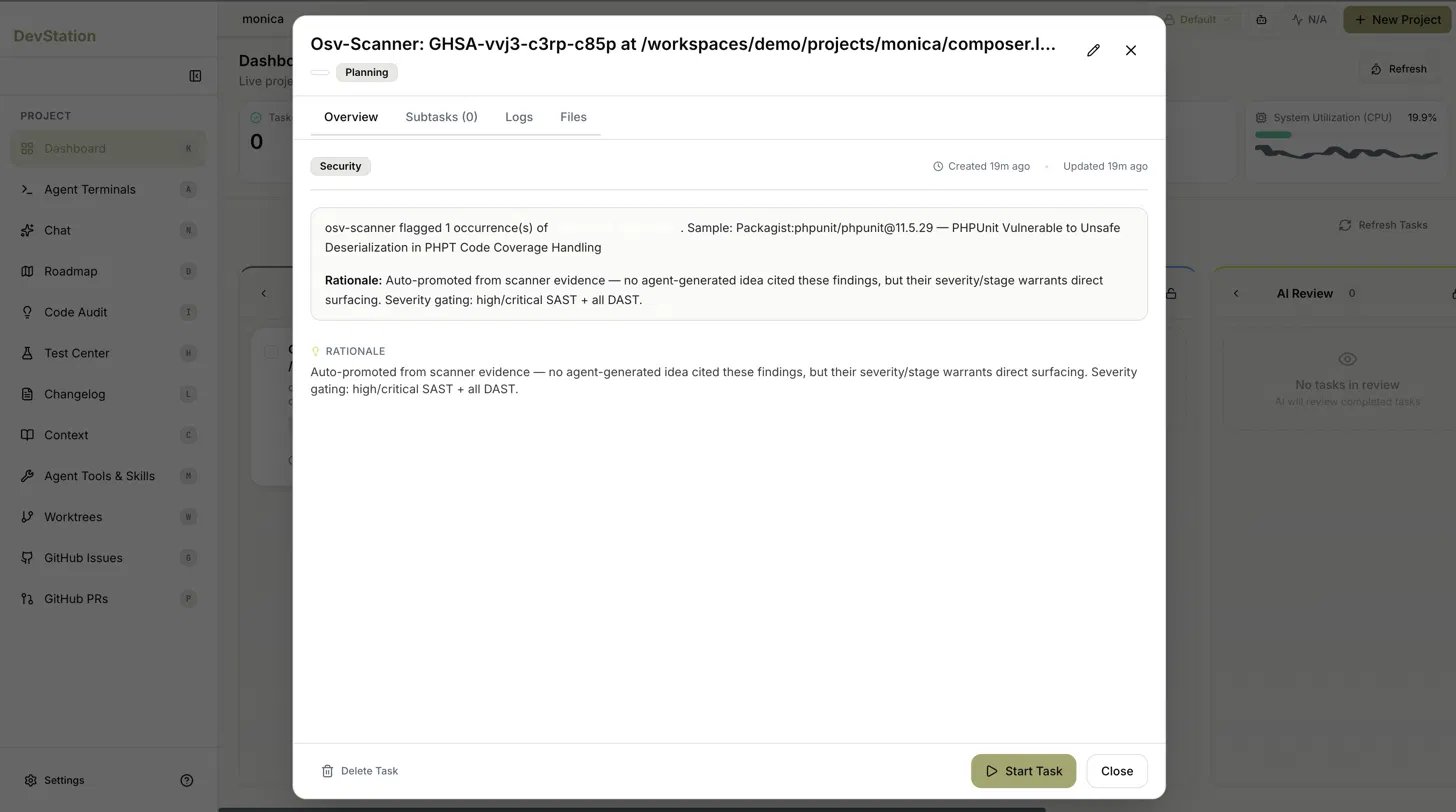
Step 4: Track progress as the work completes
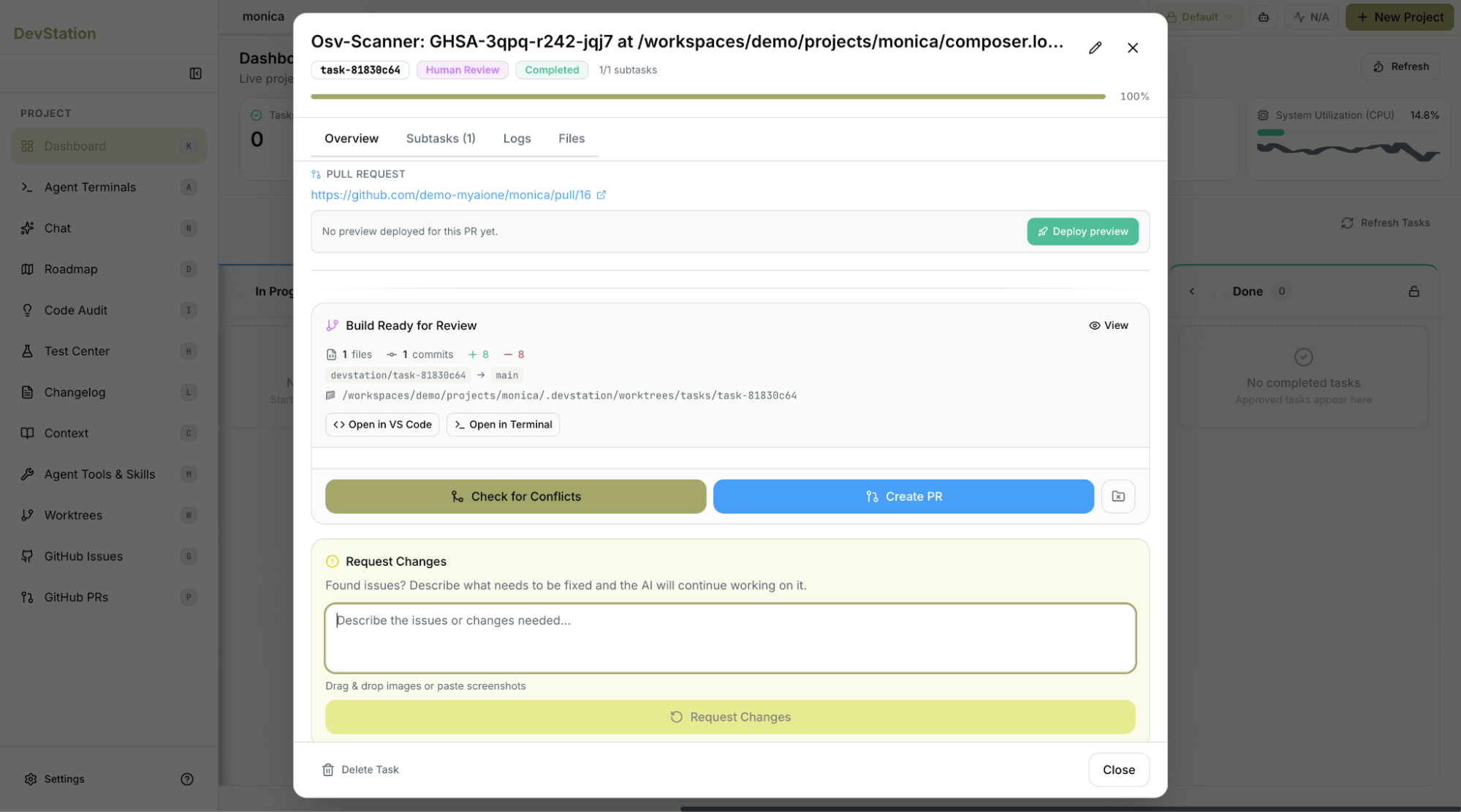
Once the task is running, switch to the Logs tab inside the modal to watch the agent work in real time as it plans and applies the fix. When the work finishes, the task’s progress bar fills to 100%, its badge changes to Completed, and the card moves automatically into the Human Review column. The Overview tab now shows a Build Ready for Review panel summarizing the change — the files touched, the commit, and the additions and removals — along with the worktree path and quick links to open the branch in your editor or terminal.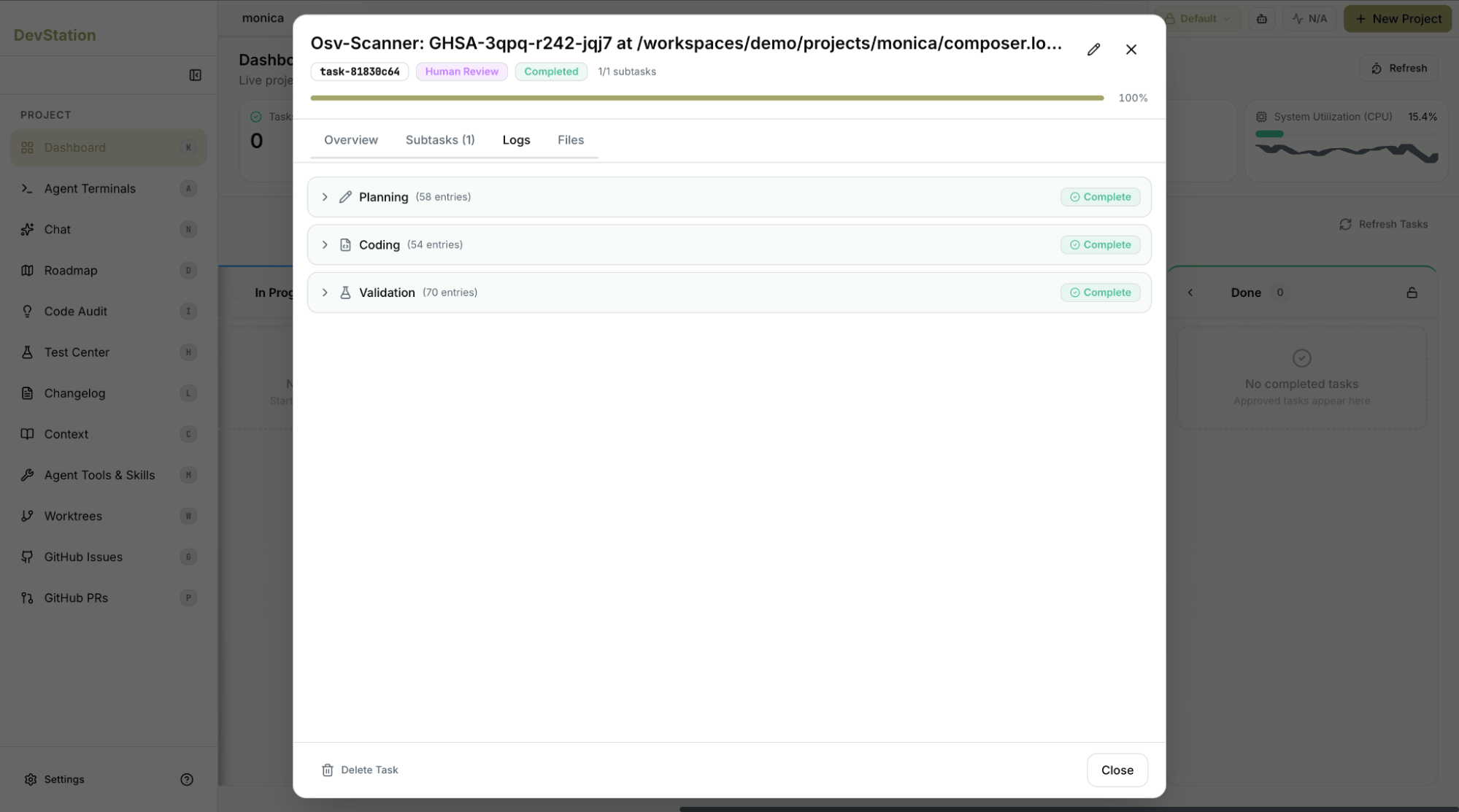
Step 5: Review and ship from Human Review
With the task in Human Review, the modal gives you everything needed to validate and ship the fix:- Deploy preview — spin up a live preview of the branch to confirm the change behaves as expected.
- Check for Conflicts — verify the branch still merges cleanly against main before opening a pull request.
- Create PR — open the pull request (a link to it appears in the modal once created), then approve and merge it through your normal GitHub flow.
- Request Changes — if something isn’t right, describe what needs fixing and the agent continues working on the task for another pass.
The vulnerability is patched in an auditable pull request, the change is preview- and conflict-checked, and the task is closed on your board — a complete, traceable path from scanner alert to merged fix.