

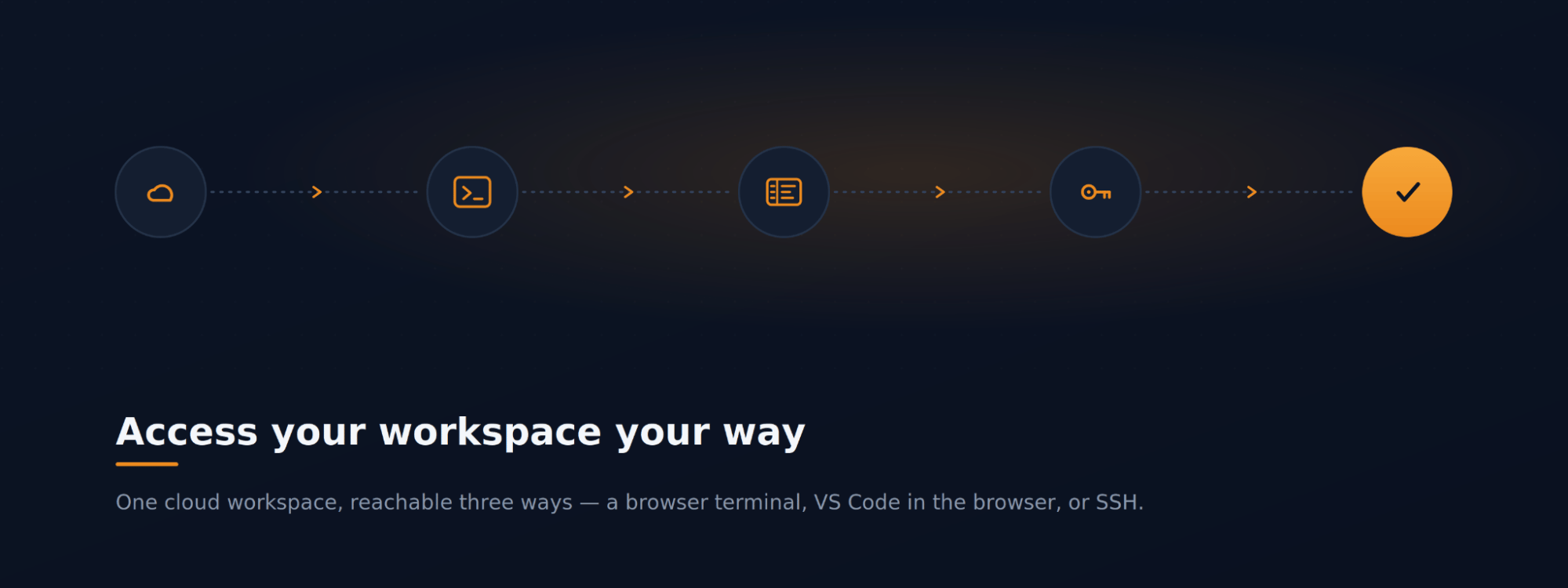
The scenario
You need to get hands-on with the project — try a command, make a quick edit, or poke around interactively — and you’d like to do it without setting up a local environment first. MyaiOne for Development runs a cloud workspace for the project and exposes it over CLI, IDE, or Web, so you can work whichever way suits you. This walkthrough covers all three.Step 1: Open a terminal in your browser
Open Agent Terminals from the sidebar to get a full shell in the browser — no local setup required. Use New Terminal to open one or more terminals (up to the workspace’s limit), each showing a live prompt in the project’s workspace. Each terminal can be attached to a specific worktree and can run an agent (Claude, Codex, Cursor, or MyAI) or just your own commands. The Files button browses the workspace’s files, and Invoke Claude All issues an instruction across every open terminal at once.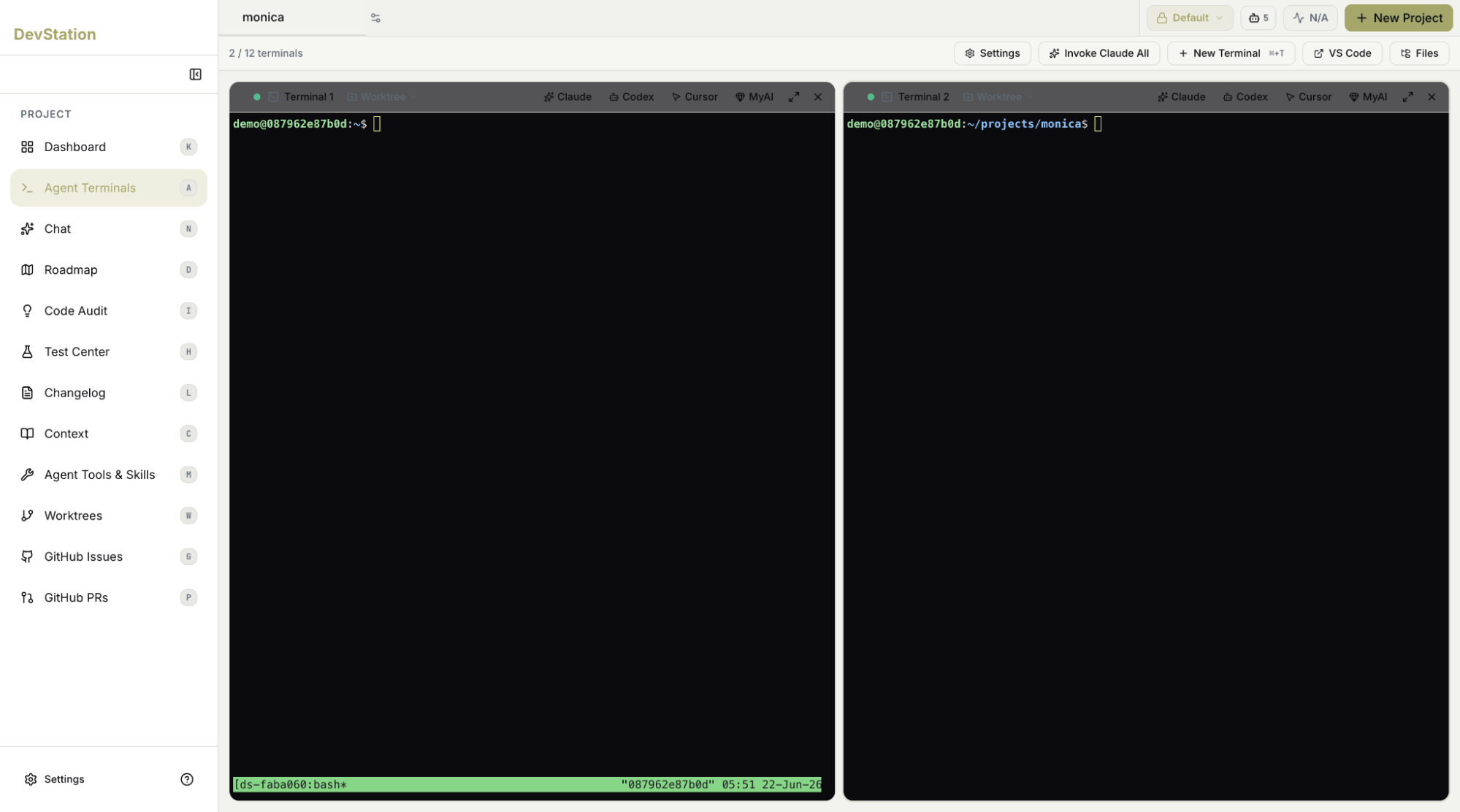
Step 2: Edit in VS Code in your browser
Click VS Code to open a full VS Code editor in the browser, running against the same workspace — again with nothing to install locally. Navigate the file tree, edit files, and use the editor as you normally would, then drop back to a terminal to run what you changed.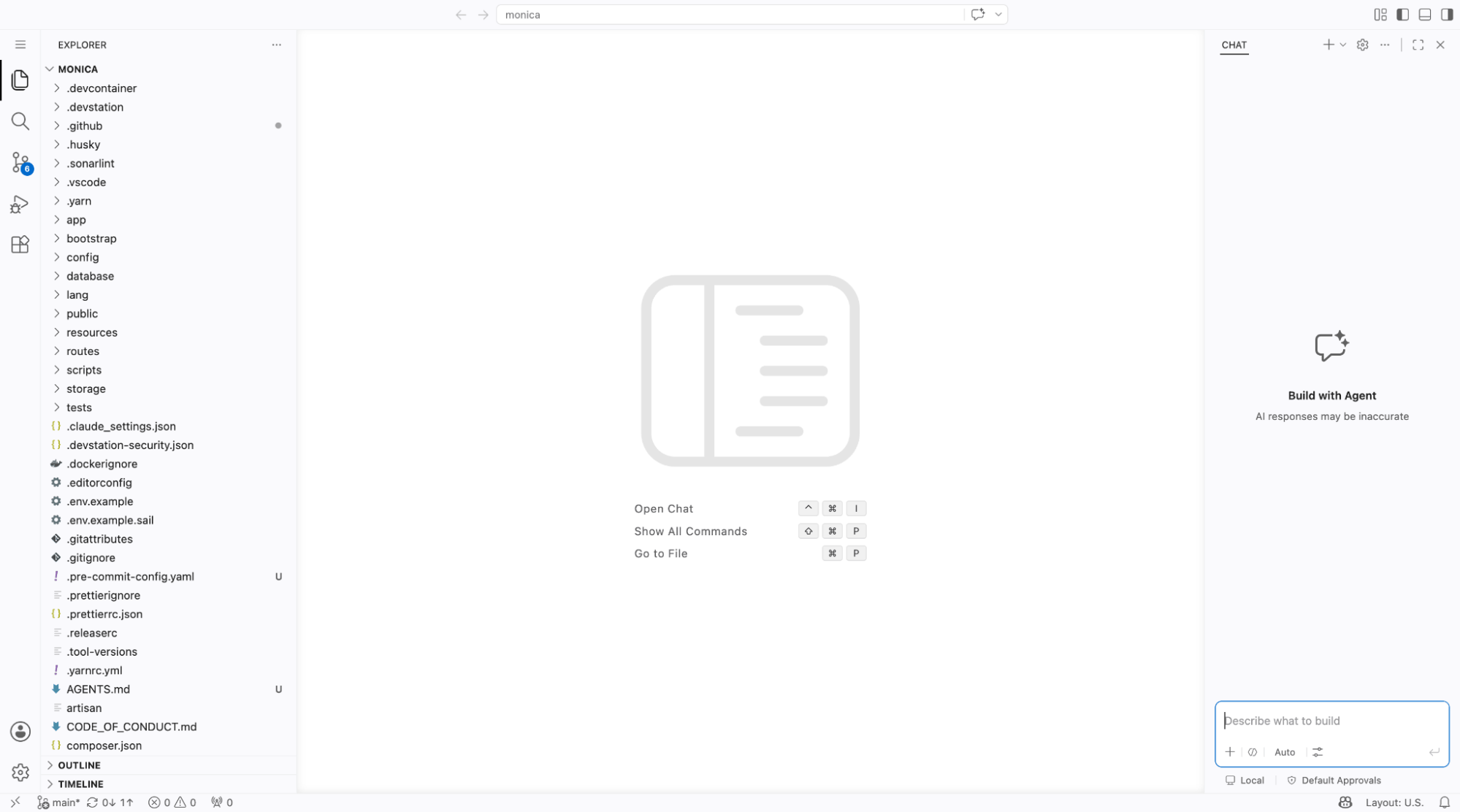
Step 3: Connect over SSH from your own tools
Prefer your own terminal or IDE? Find the Workspace access card on the Dashboard. It exposes the workspace over CLI, IDE, or Web and shows your SSH status and keys. Use Manage SSH Keys to add a key. Once the workspace is provisioned and a key is in place, SSH is enabled and you can connect to the workspace from your local machine. Until then, the card shows SSH as pending with no keys yet.

Whether you prefer a browser terminal, VS Code in the browser, or SSH from your own machine, it’s the same cloud workspace underneath — so you can jump in and work hands-on, alongside the agents, however you like.