

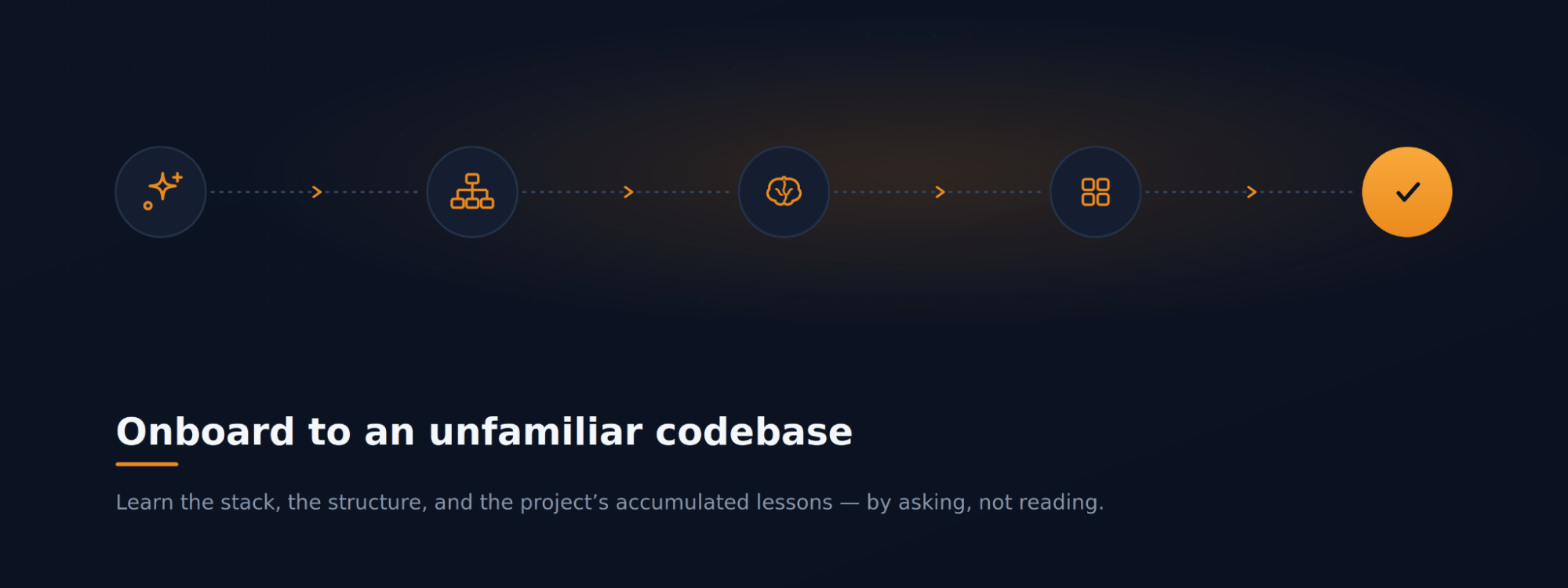
The scenario
You’ve just been added to a project and need to get productive quickly. Rather than cloning the repository and reading through it directory by directory, you want a fast, reliable orientation: what is this built with, how is it organized, what has the team already learned, and what are they working on right now. This walkthrough uses Chat and Context to answer those questions in minutes.Step 1: Ask the codebase in Chat
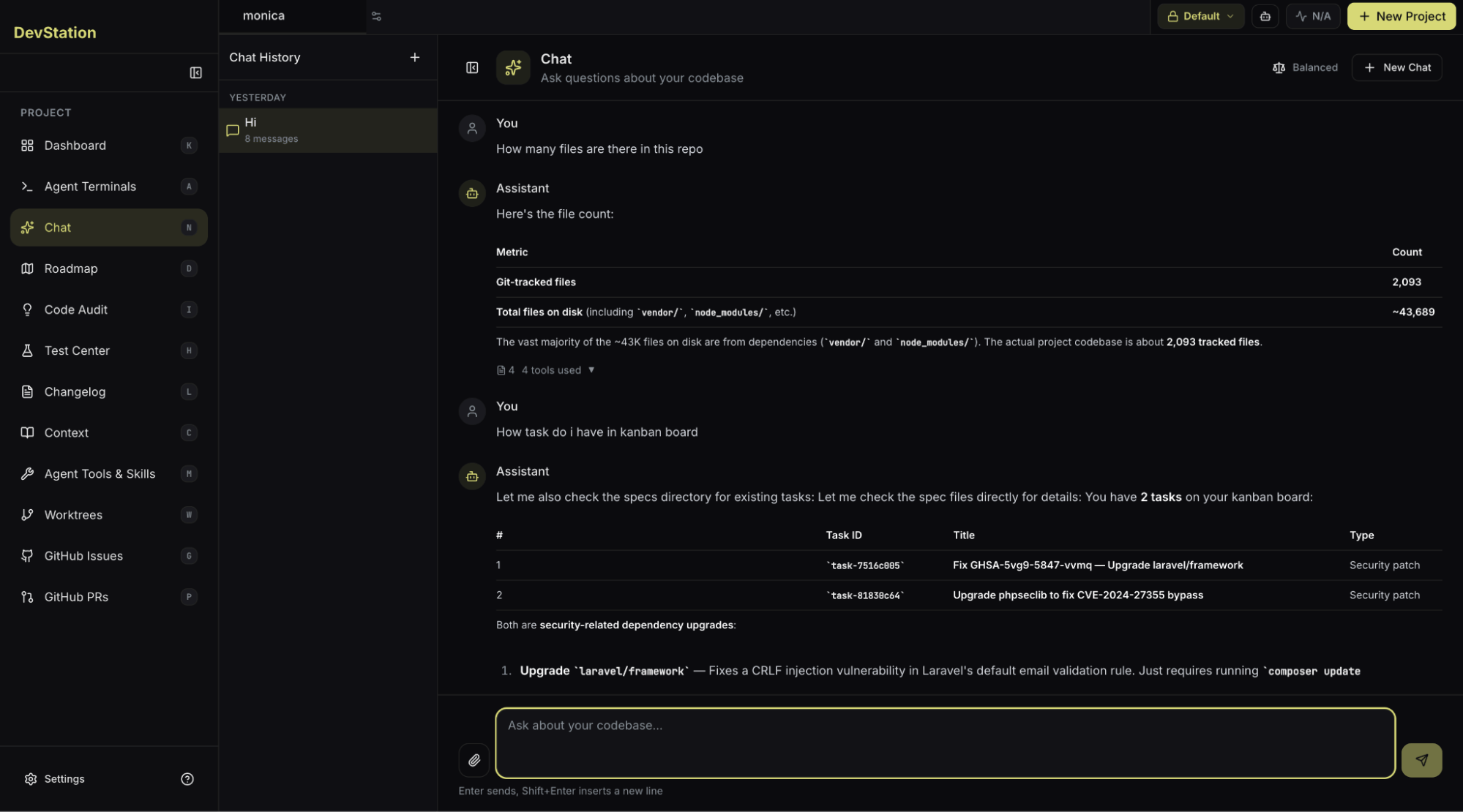
Open Chat from the project sidebar. Chat is grounded in your actual repository, so you can ask questions in plain language and get answers specific to this project rather than generic explanations. It keeps the conversation in context, so each follow-up builds on the last without you re-explaining what you’re asking about. Start broad, then drill in. A typical onboarding conversation moves like this:- “What stack is this codebase built on?” — returns a structured breakdown of the backend language and framework, the database and caching layers, the frontend framework and build tooling, the testing and linting setup, and any notable third-party integrations.
- “How many files are in this repository?” — separates first-party project code from dependencies so you can gauge the true size of the codebase.
- “Where is authentication handled?” — points you to the specific part of the system you’ve been asked to work on.
Step 2: Scan the project map in Context
For a structured overview rather than a conversational one, open Context from the sidebar. Context opens on the Project Index tab, which presents AI-discovered knowledge about your codebase as a single map. The Project Index lays out the project at a glance: the services it contains, each service’s language and framework, the build tool and key configuration, the important directories, the environment variables in use, and the infrastructure behind it (containers, CI/CD, and backing services such as databases, caches, and search). It also surfaces project conventions — linting, formatting, and git-hook setup — so you can match the team’s standards from day one. Where Chat answers a specific question, the Project Index gives you the whole structure to scan, making it the fastest way to build a mental model of an unfamiliar project.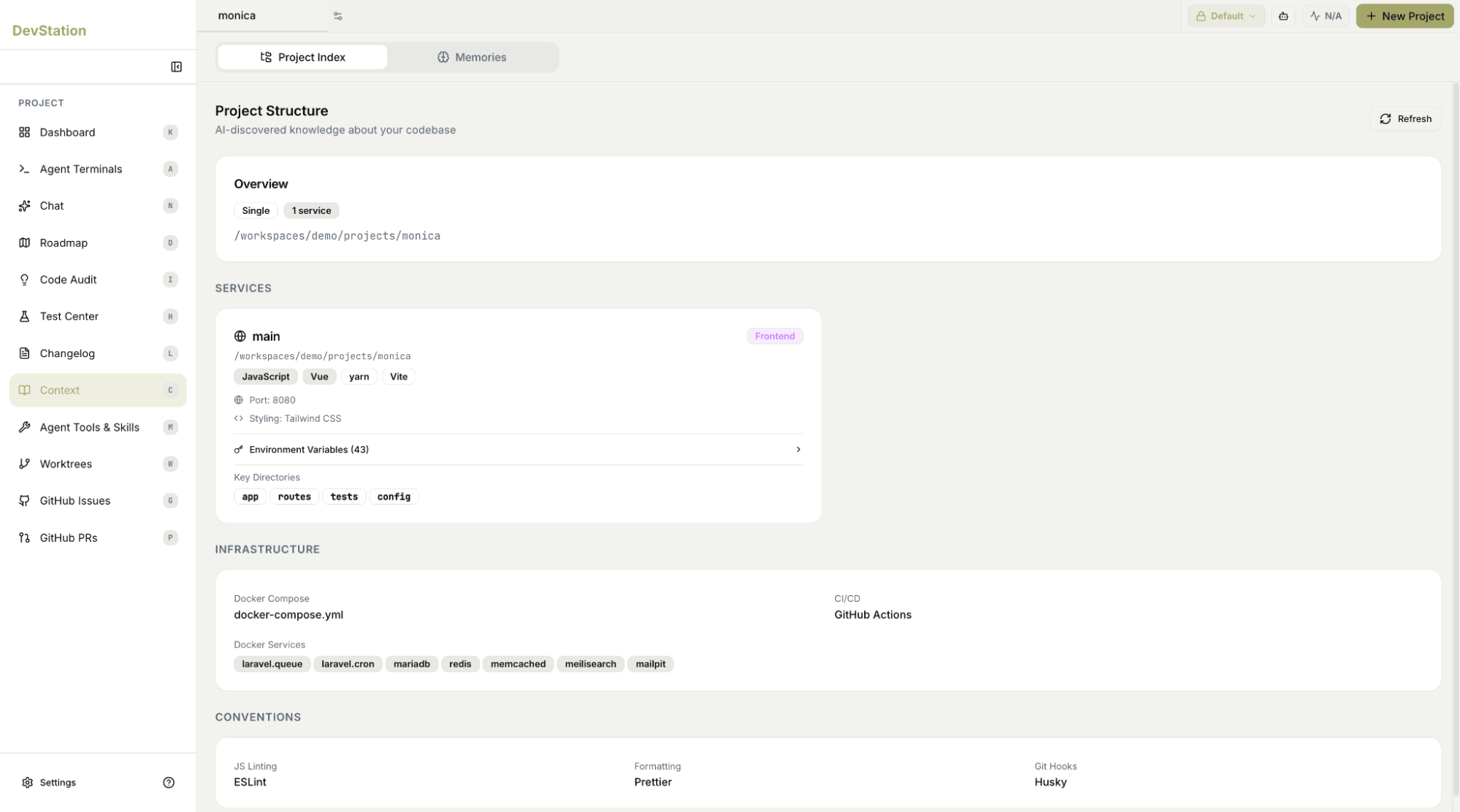
Step 3: Learn the project’s accumulated lessons in Memories
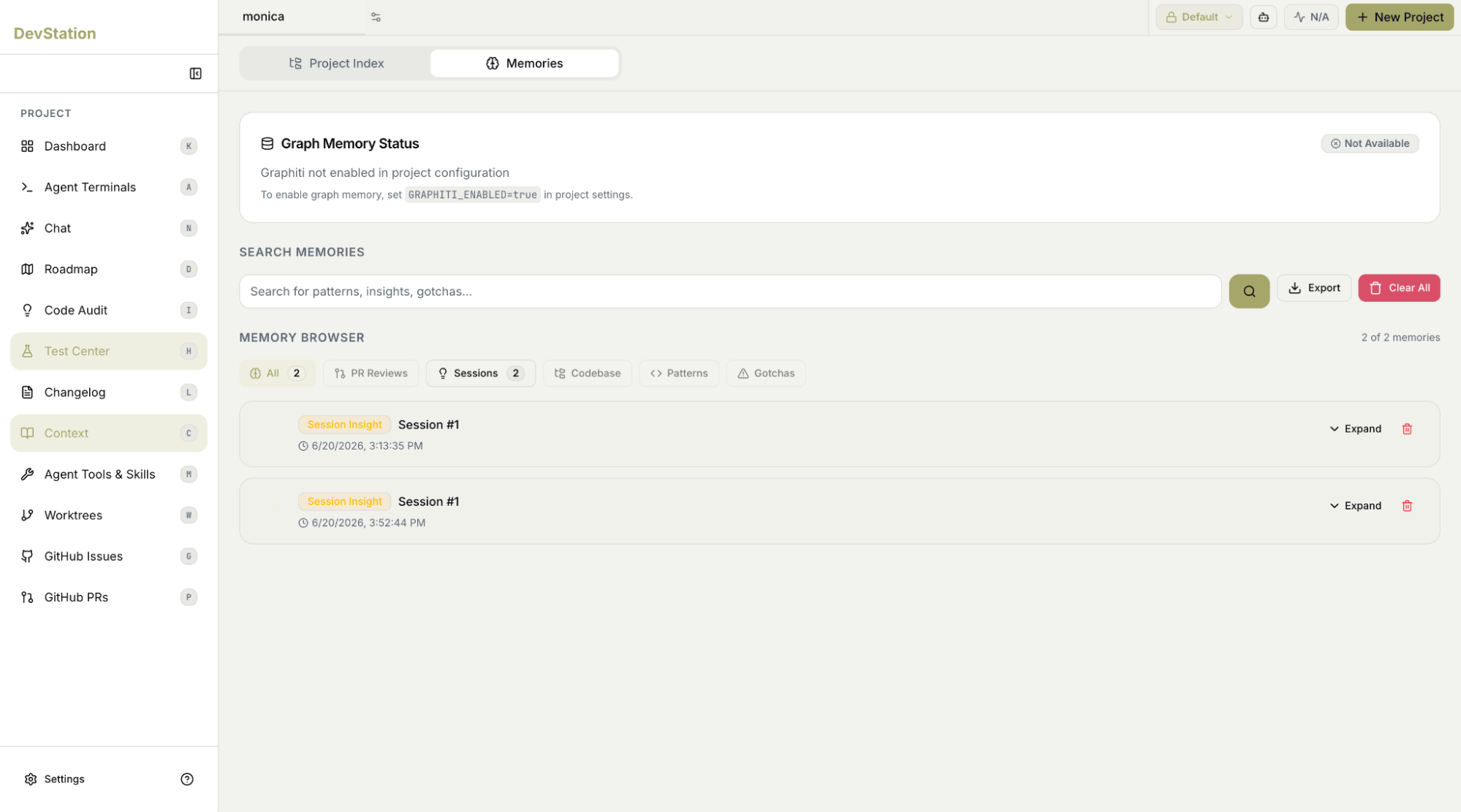
Switch to the Memories tab within Context. While the Project Index describes how the project is built, Memories captures what the team and its agents have learned while working on it — the kind of institutional knowledge you’d normally absorb slowly from teammates. Memories are organized into categories you can filter by:- Sessions — insights captured from previous agent runs.
- PR Reviews — feedback and decisions surfaced during past code reviews.
- Codebase — facts the system has learned about how the code is put together.
- Patterns — recurring approaches and conventions the project tends to follow.
- Gotchas — pitfalls and surprises worth knowing before you touch the code.
Step 4: See what work is already underway
Finally, find out what the team is currently focused on so you can pick up the right thing. Open the Dashboard and scan the kanban columns — Planning, Queue, In Progress, AI Review, Human Review, Done — to see what’s queued, what’s being worked on, and what’s awaiting review. (You can also just ask Chat “What tasks are on the board right now?” for the same list in conversational form.) Between the structure, the lessons, and the live board, you’ll know within minutes not just how the project is built, but where it is right now — and where you can start contributing.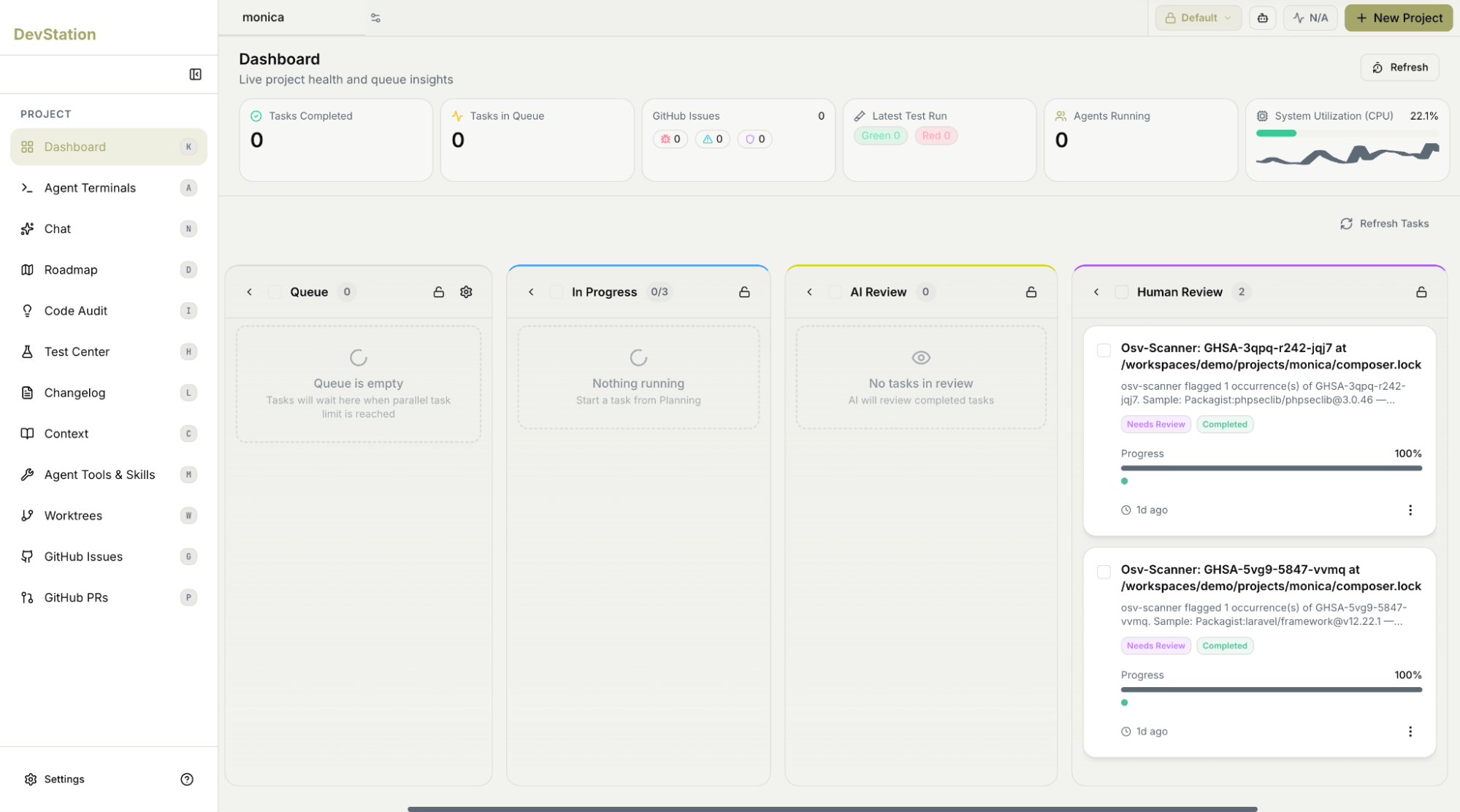
In a few minutes and without reading the repository line by line, you’ve learned the project’s stack, its structure and conventions, the lessons the team has already banked, and the work currently in progress — enough to start contributing with confidence.