

The scenario
You’re working on a project with little or no automated testing, and you want confidence before shipping changes. This walkthrough shows you how to configure testing, generate an initial test suite, run tests on demand, review diagnostics, inspect coverage, and verify the application with a live build preview.Step 1: Set up testing
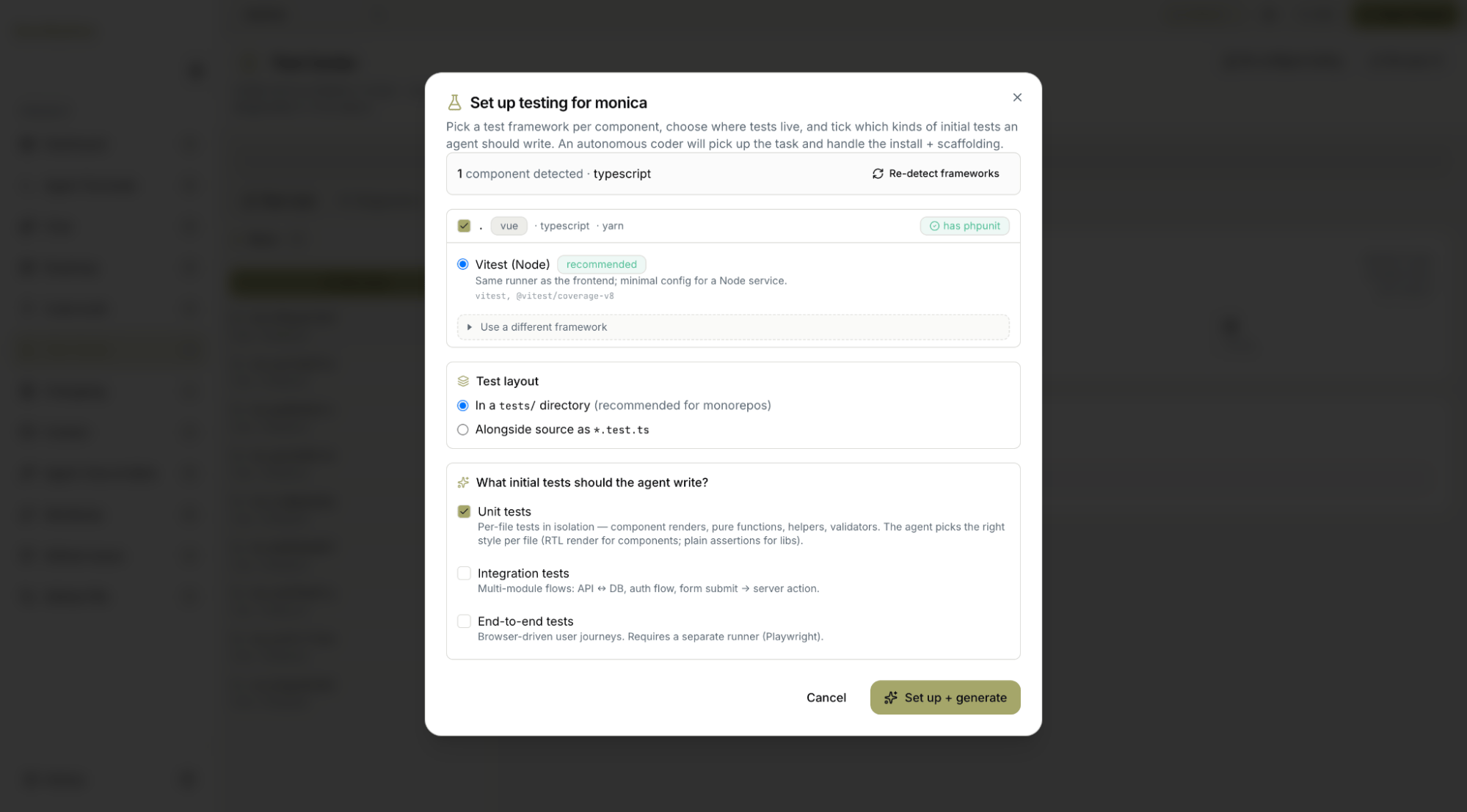
Open Test Center from the sidebar. It brings test runs, coverage, build previews, logs, and diagnostics together in a single workspace. If testing hasn’t been configured yet, launch the Setup Wizard. It detects your project’s components, recommends an appropriate testing framework for each (which you can change), lets you choose where tests should live (either in atests/ directory or alongside your source files), and allows you to generate Unit, Integration, and End-to-End tests.
Click Set Up & Generate, and an autonomous agent installs the required dependencies, scaffolds the testing framework, and generates your initial test suite. Even projects starting from scratch can be up and running with a complete testing setup in minutes.
Once testing has been configured, the wizard changes to Reconfigure Testing. Selecting Resync CI regenerates your GitHub Actions workflows using the latest MyaiOne for Development templates and opens a pull request with the updated configuration.
Step 2: Run the test suite
Open the Tests tab and switch to Test Runs, then click Run Tests to execute the suite. Every execution is recorded with its run ID, status, summary, and timestamp, giving you a complete history of your test runs. Re-running the suite after making changes is only a single click away.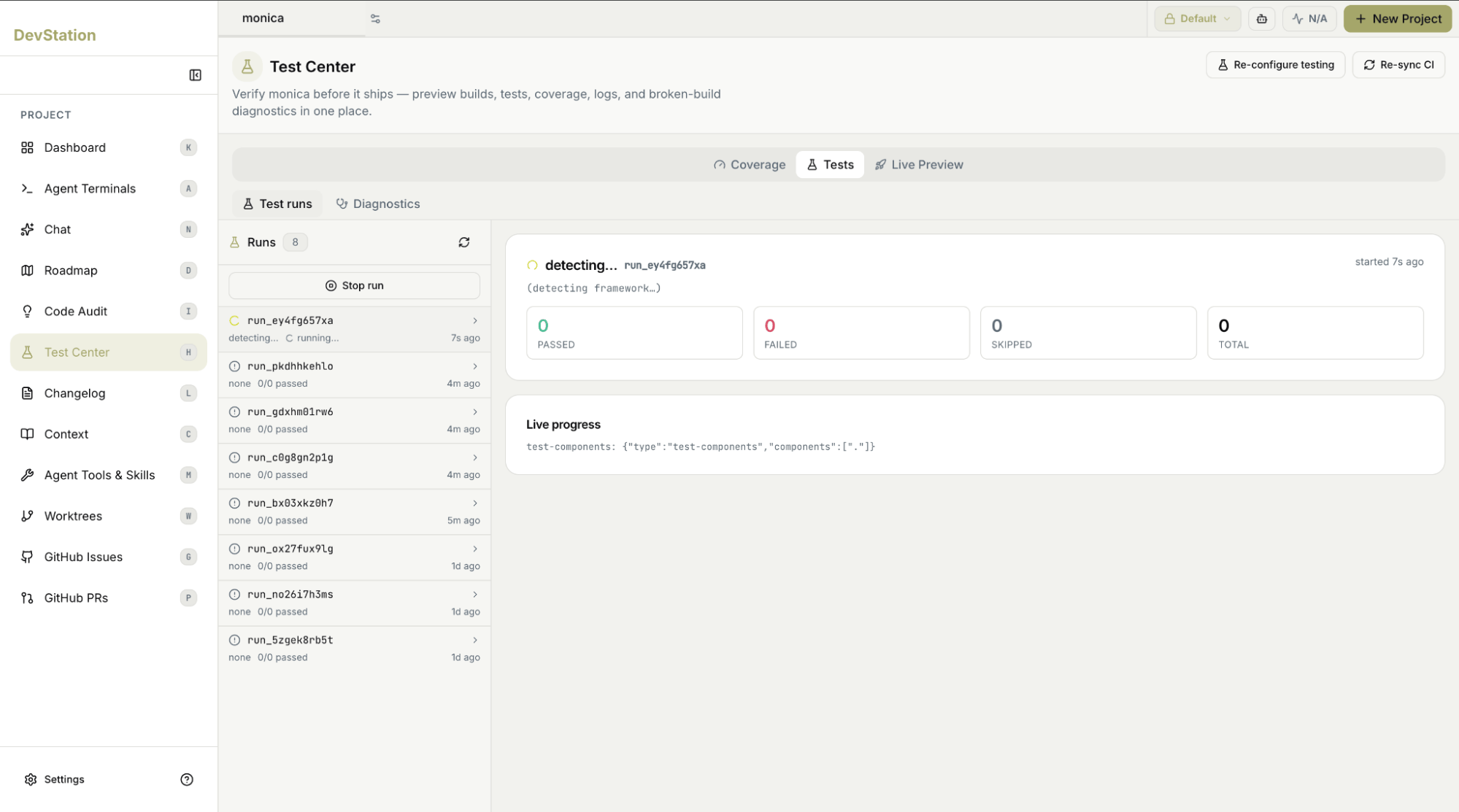
Step 3: Review results and diagnostics
Select a test run to view its details. The run summary shows its status, start time, duration, and exit code, while metric cards provide a breakdown of Passed, Failed, Skipped, and Total tests. The Full Output section displays the complete test log, making it easy to inspect failures and understand exactly what happened during execution. If a build or test run fails, switch to the Diagnostics view for an analysis of the failure and its likely root cause, helping you resolve issues without manually searching through logs.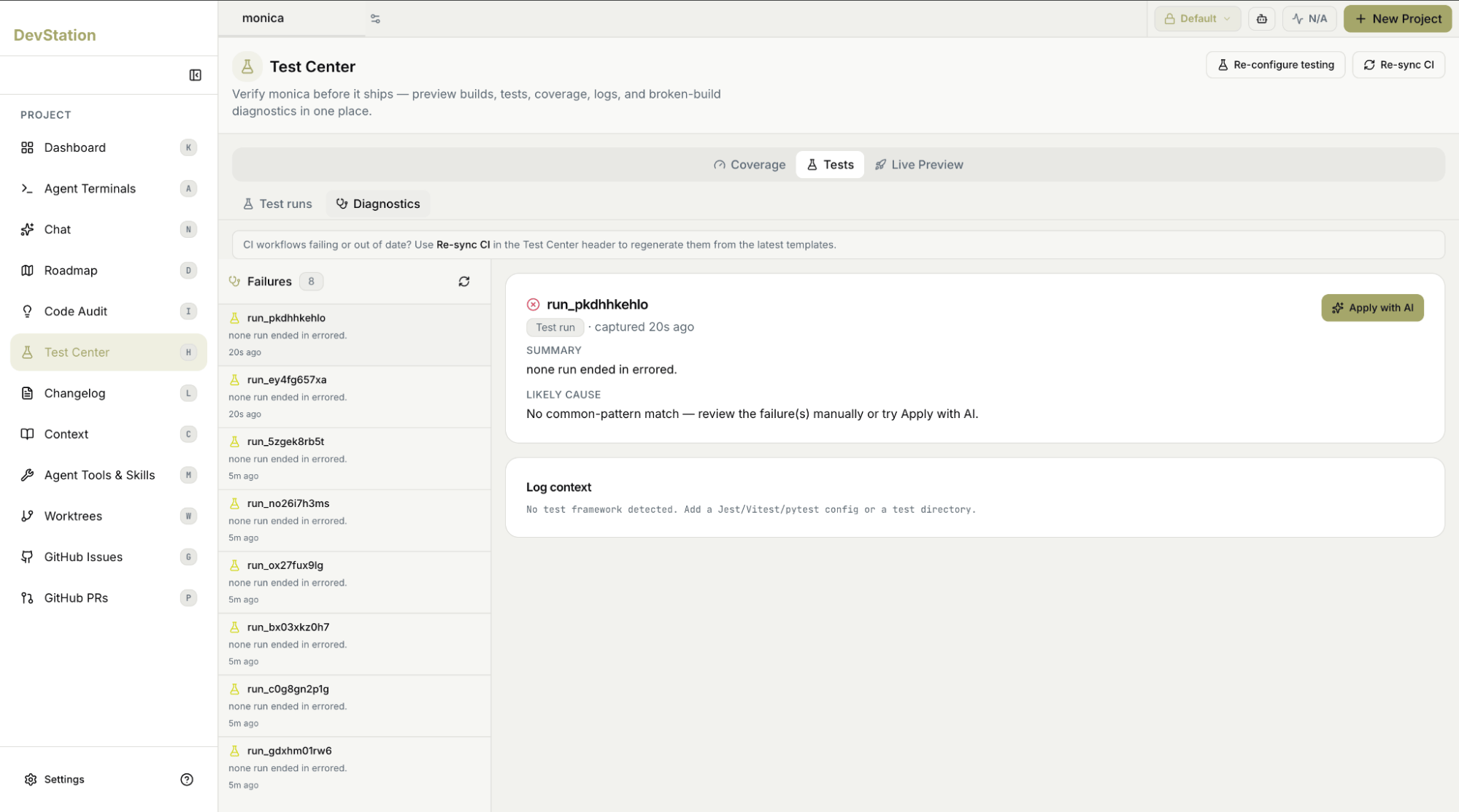
Step 4: Review coverage and preview the build
Open the Coverage tab to see how much of your codebase is exercised by your tests. Coverage reports are generated automatically using your framework’s native tooling, allowing you to identify untested areas and track improvements over time. Finally, open Live Preview to verify that the application builds and runs successfully. Together, Coverage and Live Preview help confirm not only that your tests pass, but that your application behaves as expected.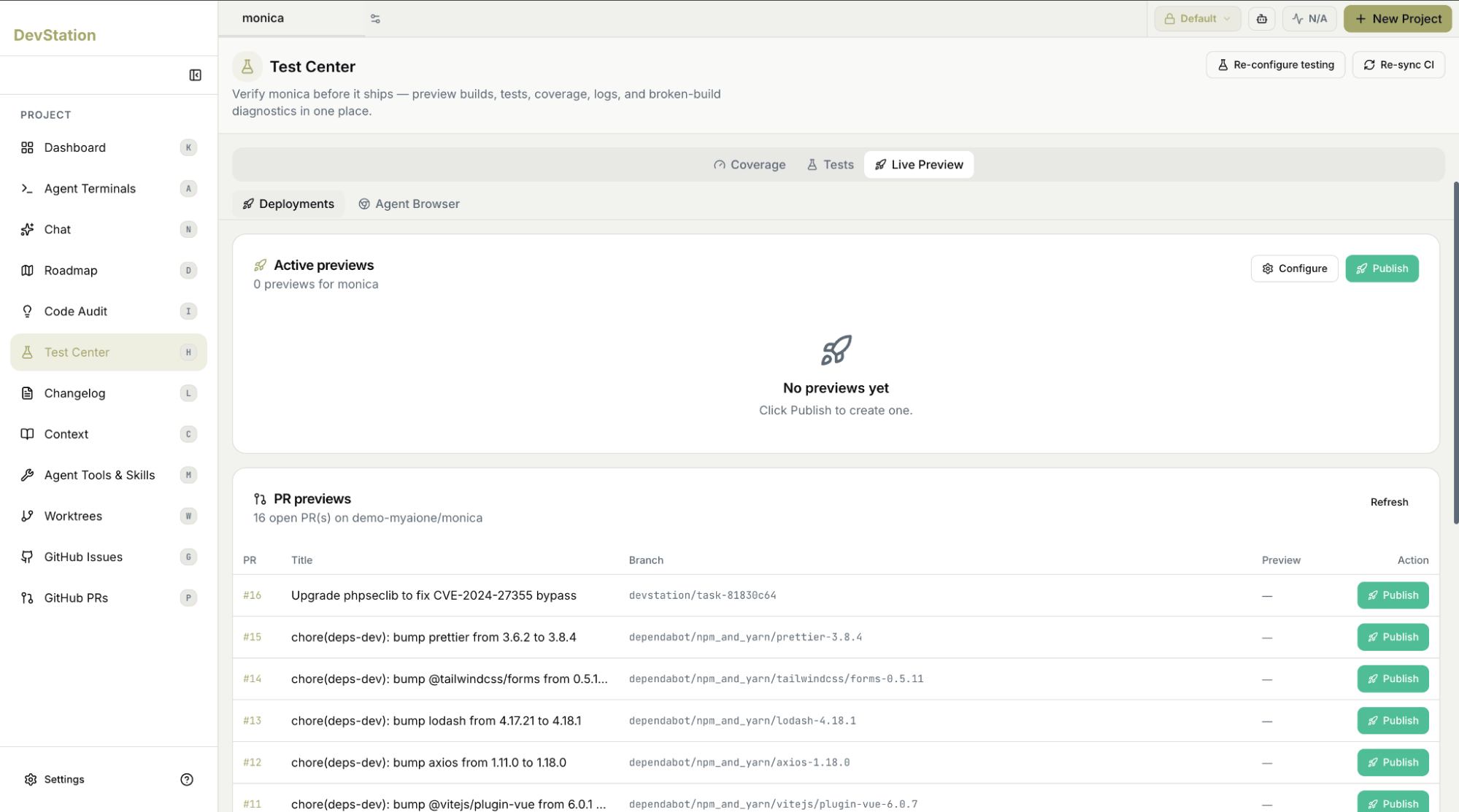
You’ve transformed a project with little or no automated testing into one with a complete testing workflow. An autonomous agent configured the testing framework, generated your initial tests, and enabled coverage reporting. You can now run tests on demand, diagnose failures from a single place, monitor coverage, and verify every build before shipping changes.