

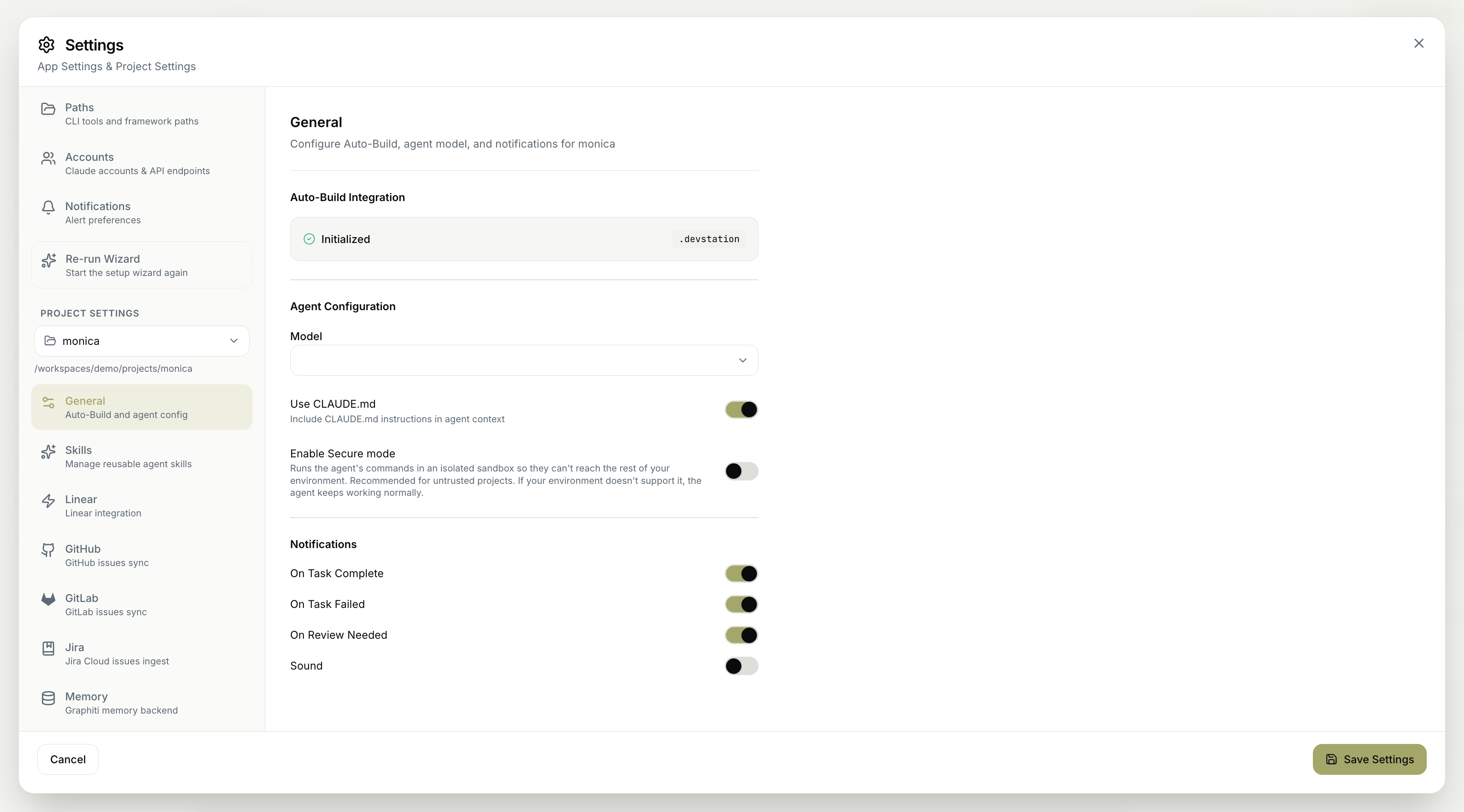
Selecting a project
Everything under Project Settings applies to a single project at a time. A project selector at the top of the section — showing the current project and its workspace path — controls which one you’re configuring. Switch projects here, and the settings below (General, and the other Project Settings panels) update to reflect the project you’ve chosen.Unlike App Settings, which apply to MyaiOne for Development as a whole, Project Settings are scoped to the selected project. Make sure the right project is chosen in the selector before editing.
Auto-Build integration
The Auto-Build Integration section shows whether Auto-Build is set up for the project. Once initialized, the project’s configuration lives in its.devstation directory, and the status reflects that it’s Initialized.
Agent configuration
Configure how agents run on this project:- Model — the Claude model used for the project’s agents.
- Use CLAUDE.md — include the project’s
CLAUDE.mdinstructions in the agent’s context, so agents follow your project-specific guidance. - Enable Secure mode — run the agent’s commands in an isolated sandbox so they can’t reach the rest of your environment. Recommended for untrusted projects. If your environment doesn’t support sandboxing, the agent keeps working normally.
Notifications
Set notification preferences for this project, independent of your global defaults:- On Task Complete — notify when a task finishes successfully.
- On Task Failed — notify when a task encounters an error.
- On Review Needed — notify when QA requires your review.
- Sound — play a sound with notifications.
Remember to save your changes for them to take effect.