> ## Documentation Index
> Fetch the complete documentation index at: https://docs.myaione.com/llms.txt
> Use this file to discover all available pages before exploring further.
# Terminal Fonts
> Customize terminal font appearance and behavior in MyaiOne for Development — font family, size, weight, spacing, cursor style, scrollback performance, and reusable presets, all with a live preview.
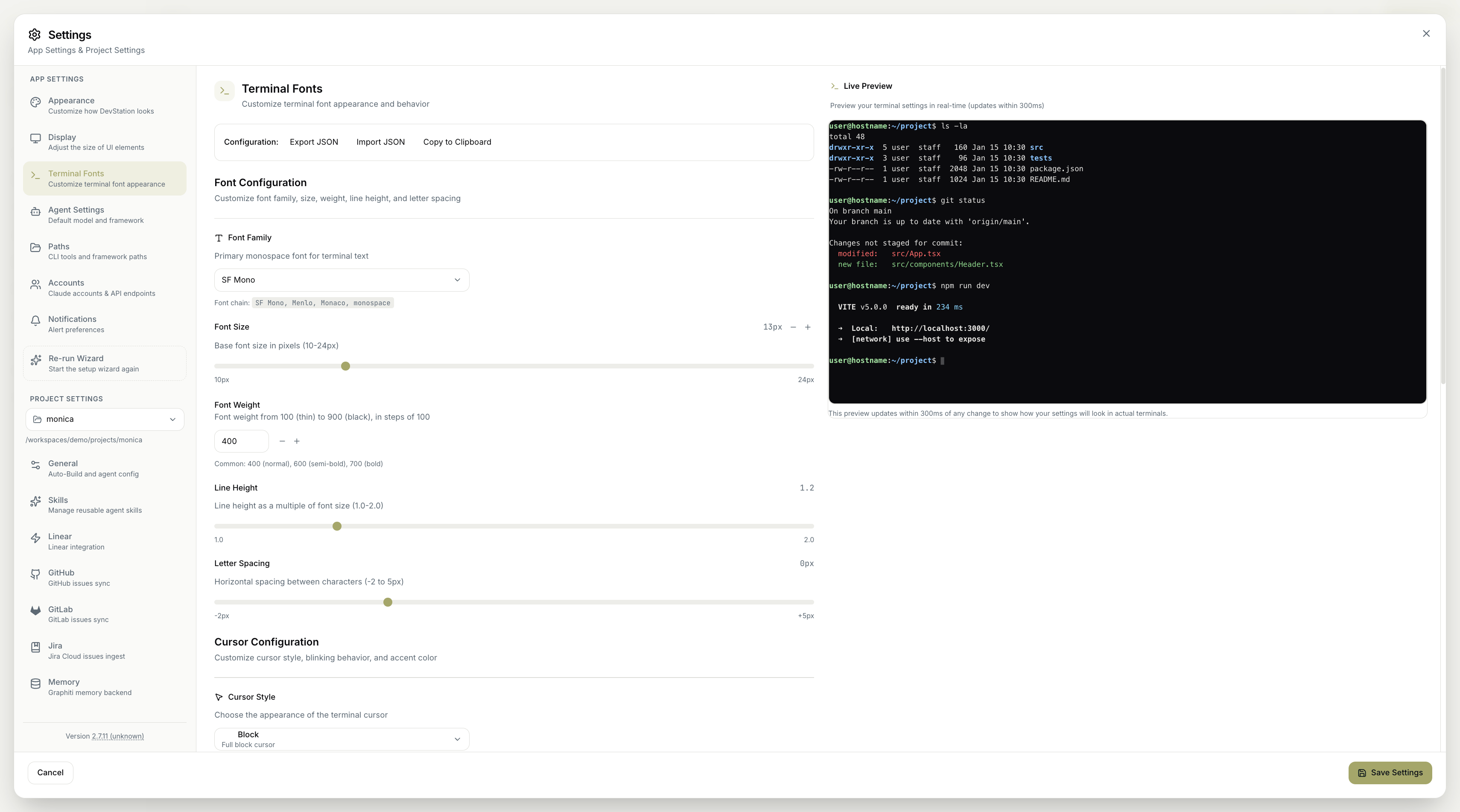
The **Terminal Fonts** settings control how text looks and behaves in the terminal. You can tune the font, the cursor, and scrollback performance, apply built-in presets, save your own, and see every change reflected in a live preview. The whole configuration can also be exported, imported, or copied so you can move it between machines.
 ## Configuration import and export
At the top, the **Configuration** controls let you move settings around: **Export JSON** to save your configuration, **Import JSON** to load one, or **Copy to Clipboard** to grab it as text.
## Font configuration
Customize the font family, size, weight, line height, and letter spacing of terminal text:
* **Font Family** — the primary monospace font (with a fallback font chain).
* **Font Size** — the base font size in pixels (10–24px).
* **Font Weight** — from 100 (thin) to 900 (black) in steps of 100; common choices are 400 (normal), 600 (semi-bold), and 700 (bold).
* **Line Height** — as a multiple of font size (1.0–2.0).
* **Letter Spacing** — horizontal spacing between characters (−2 to 5px).
## Cursor configuration
Customize the cursor's style, blinking, and color:
* **Cursor Style** — the appearance of the terminal cursor (for example, a full block cursor).
* **Cursor Blink** — enable or disable the blinking animation.
* **Cursor Accent Color** — the cursor's color, with a **Reset** to return to the default.
## Performance settings
Control how much terminal history is kept, which affects performance:
* **Quick Presets** — common scrollback limits: **1K (Minimal)**, **10K (Standard)**, **50K (Extended)**, **100K (Maximum)**.
* **Scrollback Limit** — the maximum number of lines to keep in terminal history (1K–100K).
A larger scrollback keeps more output available to scroll back through, but uses more memory. Pick the preset that matches how much history you actually need.
## Quick presets
Apply a pre-configured set of terminal font settings, or save your own:
* **Built-in Presets** — one-click configurations modeled on familiar editors and terminals: **VS Code** (Consolas 14px, block cursor), **IntelliJ IDEA** (JetBrains Mono 13px, block cursor), **macOS Terminal** (SF Mono 13px, block cursor), and **Ubuntu Terminal** (Ubuntu Mono 13px, block cursor).
* **Reset to Defaults** — restore the default settings for your operating system with **Reset to OS Default**.
* **Custom Presets** — **Save** your current configuration as a reusable preset. Until you do, none are listed.
## Live preview
A **Live Preview** shows your terminal settings in real time, updating within 300ms of any change so you can see exactly how your choices will look in an actual terminal before saving.
Start from the **built-in preset** closest to what you're used to, then fine-tune the font and cursor — the **Live Preview** makes it easy to dial in without guesswork. Save the result as a **Custom Preset** to reuse it later.
Remember to click **Save Settings** to apply your changes. **Cancel** discards them.
## Configuration import and export
At the top, the **Configuration** controls let you move settings around: **Export JSON** to save your configuration, **Import JSON** to load one, or **Copy to Clipboard** to grab it as text.
## Font configuration
Customize the font family, size, weight, line height, and letter spacing of terminal text:
* **Font Family** — the primary monospace font (with a fallback font chain).
* **Font Size** — the base font size in pixels (10–24px).
* **Font Weight** — from 100 (thin) to 900 (black) in steps of 100; common choices are 400 (normal), 600 (semi-bold), and 700 (bold).
* **Line Height** — as a multiple of font size (1.0–2.0).
* **Letter Spacing** — horizontal spacing between characters (−2 to 5px).
## Cursor configuration
Customize the cursor's style, blinking, and color:
* **Cursor Style** — the appearance of the terminal cursor (for example, a full block cursor).
* **Cursor Blink** — enable or disable the blinking animation.
* **Cursor Accent Color** — the cursor's color, with a **Reset** to return to the default.
## Performance settings
Control how much terminal history is kept, which affects performance:
* **Quick Presets** — common scrollback limits: **1K (Minimal)**, **10K (Standard)**, **50K (Extended)**, **100K (Maximum)**.
* **Scrollback Limit** — the maximum number of lines to keep in terminal history (1K–100K).
A larger scrollback keeps more output available to scroll back through, but uses more memory. Pick the preset that matches how much history you actually need.
## Quick presets
Apply a pre-configured set of terminal font settings, or save your own:
* **Built-in Presets** — one-click configurations modeled on familiar editors and terminals: **VS Code** (Consolas 14px, block cursor), **IntelliJ IDEA** (JetBrains Mono 13px, block cursor), **macOS Terminal** (SF Mono 13px, block cursor), and **Ubuntu Terminal** (Ubuntu Mono 13px, block cursor).
* **Reset to Defaults** — restore the default settings for your operating system with **Reset to OS Default**.
* **Custom Presets** — **Save** your current configuration as a reusable preset. Until you do, none are listed.
## Live preview
A **Live Preview** shows your terminal settings in real time, updating within 300ms of any change so you can see exactly how your choices will look in an actual terminal before saving.
Start from the **built-in preset** closest to what you're used to, then fine-tune the font and cursor — the **Live Preview** makes it easy to dial in without guesswork. Save the result as a **Custom Preset** to reuse it later.
Remember to click **Save Settings** to apply your changes. **Cancel** discards them.