> ## Documentation Index
> Fetch the complete documentation index at: https://docs.myaione.com/llms.txt
> Use this file to discover all available pages before exploring further.
# Display
> Adjust the size of UI elements in MyaiOne for Development. Pick a scale preset or fine-tune the interface scale, and choose how logs are ordered in the task detail view.
The **Display** settings let you adjust the size of UI elements so the interface is comfortable to read at your resolution, and control how logs are ordered when you view a task's details.
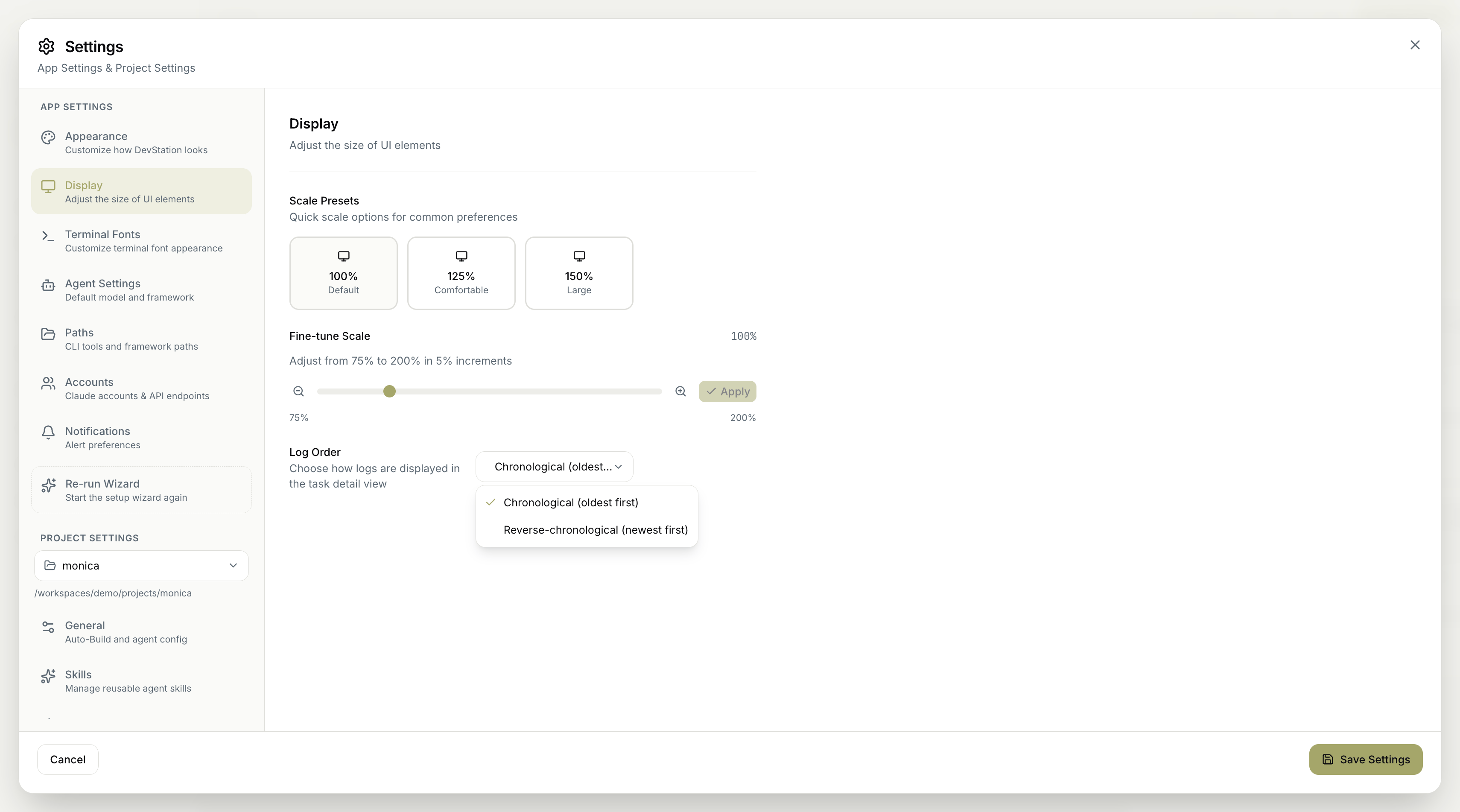 ## Scale presets
Quick scale options for common preferences let you resize the interface in one click:
* **100% — Default** — the standard size.
* **125% — Comfortable** — slightly larger for easier reading.
* **150% — Large** — the largest preset.
## Fine-tune scale
If the presets don't land exactly where you want, fine-tune the scale manually. Adjust from **75% to 200%** in **5% increments**, then click **Apply** to set it.
## Log order
Choose how logs are displayed in the task detail view:
* **Chronological (oldest first)** — read a run from the beginning.
* **Reverse-chronological (newest first)** — see the latest output at the top.
If the UI feels cramped or oversized, start with the nearest **preset**, then use **Fine-tune scale** to nudge it in 5% steps until it's right.
Remember to click **Save Settings** to apply your changes. **Cancel** discards them.
## Scale presets
Quick scale options for common preferences let you resize the interface in one click:
* **100% — Default** — the standard size.
* **125% — Comfortable** — slightly larger for easier reading.
* **150% — Large** — the largest preset.
## Fine-tune scale
If the presets don't land exactly where you want, fine-tune the scale manually. Adjust from **75% to 200%** in **5% increments**, then click **Apply** to set it.
## Log order
Choose how logs are displayed in the task detail view:
* **Chronological (oldest first)** — read a run from the beginning.
* **Reverse-chronological (newest first)** — see the latest output at the top.
If the UI feels cramped or oversized, start with the nearest **preset**, then use **Fine-tune scale** to nudge it in 5% steps until it's right.
Remember to click **Save Settings** to apply your changes. **Cancel** discards them.