> ## Documentation Index
> Fetch the complete documentation index at: https://docs.myaione.com/llms.txt
> Use this file to discover all available pages before exploring further.
# Access your workspace your way — Web, IDE, or SSH
> Sometimes you want to work in the code yourself — run a command, edit a file, debug interactively — rather than only directing agents. MyaiOne for Development gives each project a cloud workspace you can reach three ways: a terminal and VS Code right in your browser, or over SSH from your own machine.
 ## The scenario
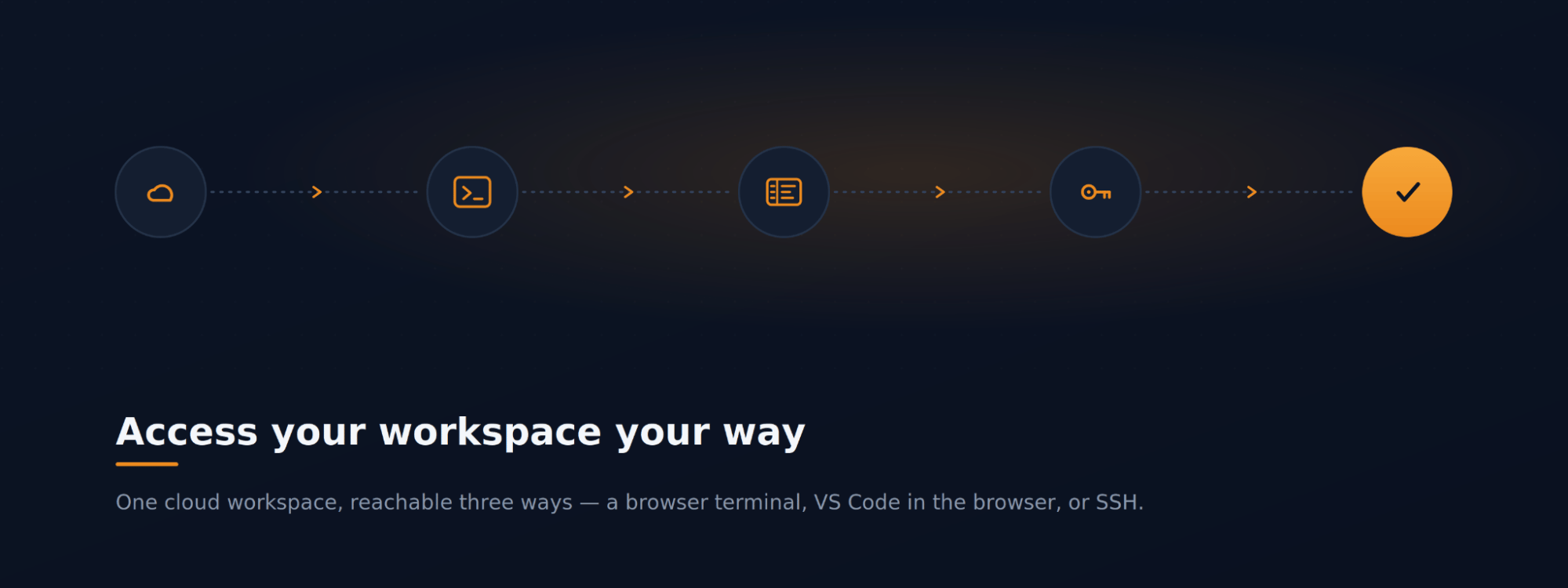
You need to get hands-on with the project — try a command, make a quick edit, or poke around interactively — and you'd like to do it without setting up a local environment first. MyaiOne for Development runs a cloud workspace for the project and exposes it over **CLI, IDE, or Web**, so you can work whichever way suits you. This walkthrough covers all three.
***
## Step 1: Open a terminal in your browser
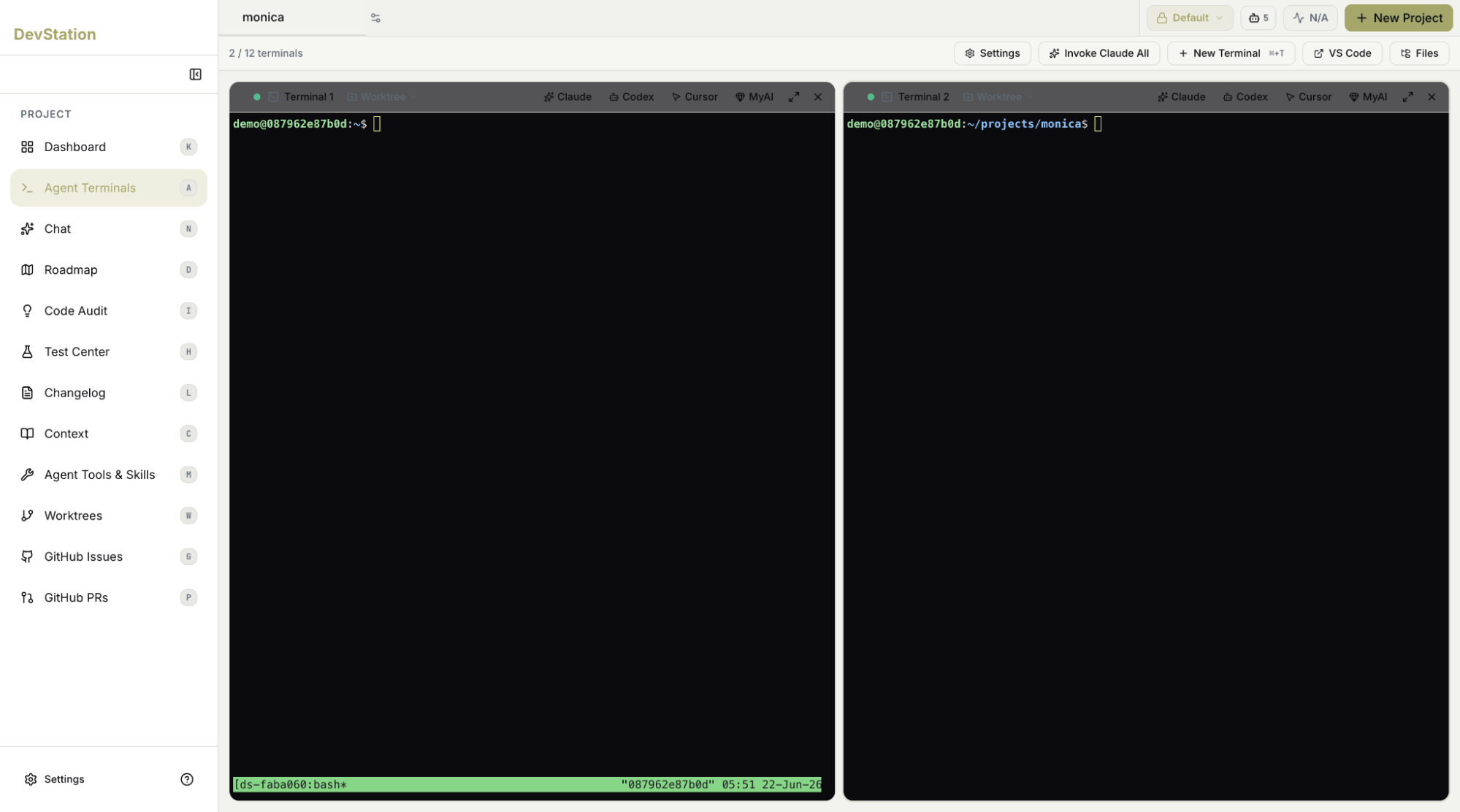
Open **Agent Terminals** from the sidebar to get a full shell in the browser — no local setup required. Use **New Terminal** to open one or more terminals (up to the workspace's limit), each showing a live prompt in the project's workspace.
Each terminal can be attached to a specific **worktree** and can run an agent (Claude, Codex, Cursor, or MyAI) or just your own commands. The **Files** button browses the workspace's files, and **Invoke Claude All** issues an instruction across every open terminal at once.
## The scenario
You need to get hands-on with the project — try a command, make a quick edit, or poke around interactively — and you'd like to do it without setting up a local environment first. MyaiOne for Development runs a cloud workspace for the project and exposes it over **CLI, IDE, or Web**, so you can work whichever way suits you. This walkthrough covers all three.
***
## Step 1: Open a terminal in your browser
Open **Agent Terminals** from the sidebar to get a full shell in the browser — no local setup required. Use **New Terminal** to open one or more terminals (up to the workspace's limit), each showing a live prompt in the project's workspace.
Each terminal can be attached to a specific **worktree** and can run an agent (Claude, Codex, Cursor, or MyAI) or just your own commands. The **Files** button browses the workspace's files, and **Invoke Claude All** issues an instruction across every open terminal at once.
 ***
## Step 2: Edit in VS Code in your browser
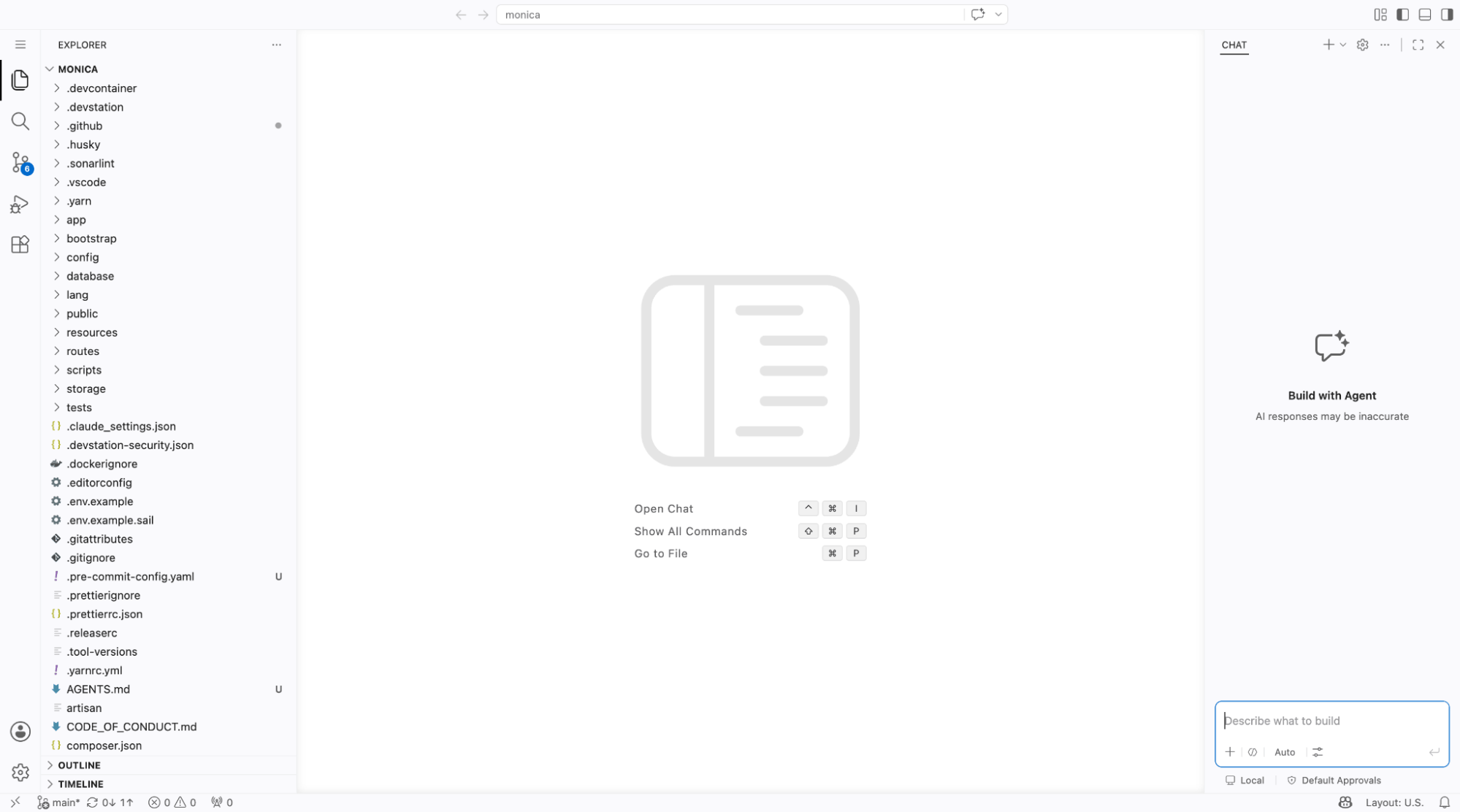
Click **VS Code** to open a full VS Code editor in the browser, running against the same workspace — again with nothing to install locally. Navigate the file tree, edit files, and use the editor as you normally would, then drop back to a terminal to run what you changed.
**Nothing to install for Web or IDE.** The browser terminal and VS Code both run in the cloud workspace, so you can work from any machine without setting up a local environment.
***
## Step 2: Edit in VS Code in your browser
Click **VS Code** to open a full VS Code editor in the browser, running against the same workspace — again with nothing to install locally. Navigate the file tree, edit files, and use the editor as you normally would, then drop back to a terminal to run what you changed.
**Nothing to install for Web or IDE.** The browser terminal and VS Code both run in the cloud workspace, so you can work from any machine without setting up a local environment.
 ***
## Step 3: Connect over SSH from your own tools
Prefer your own terminal or IDE? Find the **Workspace access** card on the **Dashboard**. It exposes the workspace over CLI, IDE, or Web and shows your **SSH** status and **keys**.
Use **Manage SSH Keys** to add a key. Once the workspace is provisioned and a key is in place, SSH is enabled and you can connect to the workspace from your local machine. Until then, the card shows SSH as pending with no keys yet.
***
## Step 3: Connect over SSH from your own tools
Prefer your own terminal or IDE? Find the **Workspace access** card on the **Dashboard**. It exposes the workspace over CLI, IDE, or Web and shows your **SSH** status and **keys**.
Use **Manage SSH Keys** to add a key. Once the workspace is provisioned and a key is in place, SSH is enabled and you can connect to the workspace from your local machine. Until then, the card shows SSH as pending with no keys yet.

 ***
Whether you prefer a browser terminal, VS Code in the browser, or SSH from your own machine, it's the same cloud workspace underneath — so you can jump in and work hands-on, alongside the agents, however you like.
***
Whether you prefer a browser terminal, VS Code in the browser, or SSH from your own machine, it's the same cloud workspace underneath — so you can jump in and work hands-on, alongside the agents, however you like.